ClickUp Review 2026 — Is It Worth Your Time?
ClickUp is a powerful project management platform that helps teams organize tasks and streamline workflows efficiently. Moreover, it suits fast-moving teams and agencies handling multiple projects simultaneously. This review highlights real experiences and expert insights to guide your decision.
Additionally, ClickUp offers collaboration tools that keep everyone on the same page. For instance, teams can track progress, set priorities, and manage deadlines with ease. Consequently, it reduces friction and boosts productivity across departments.
Finally, understanding ClickUp review insights, including its features, pricing, and use cases, can help you choose the right plan. By evaluating its pros and cons, you can see whether it fits your team’s workflow. Overall, this ClickUp review shows it’s a versatile tool for keeping projects organized and efficient.
ClickUp Review 2026 — Quick Verdict & Key Takeaways
⚡️Key Takeaways
- Clean and consistent naming, statuses, and fields are essential for fast setup.
- Use Lists for planning, Boards for execution, Calendars for dates, and Gantt for dependencies.
- Capacity planning works only when estimates are required and scheduled as calendar blocks.
- Time-block work to align estimated vs actual effort; dates alone don’t ensure a schedule.
- Start with a few high-impact automations; avoid exceeding quotas or creating too many rules.
- Dashboards are effective only after standardizing fields and estimates.
- ClickUp Brain helps with standups, status checks, searches, and quick drafts, but has limits for uploads and custom dashboards.
- Free plans suit trials; advanced reporting and capacity require paid subscriptions.
ClickUp aims to consolidate tasks, docs, whiteboards, dashboards, and AI into one platform. It works best for teams that invest time in setup and process management. For others, its complexity can hinder adoption, but it has clear strengths when used under the right conditions in 2026.
Key Takeaways
- Success depends on organizing names, statuses, and fields clearly.
- Lists are for planning, Boards for execution, Calendars for dates, and Gantt charts for dependencies.
- Capacity tracking works only if estimates are required and scheduled.
- Block time for tasks to avoid gaps between estimated and actual work.
- Begin with a few key automations; avoid exceeding quotas or creating too many rules.
- Dashboards are effective after standardizing fields and estimates.
- ClickUp Brain aids standups, status checks, cross-app search, and drafting, but has limits on uploads and custom dashboards.
- Free plans are sufficient for testing, but paid plans are needed for advanced reporting and capacity management.
TL;DR — Is ClickUp Worth It in 2026?
ClickUp 2026 Verdict: Great for structured, project-heavy teams; not ideal for quick-start or lightweight planners.
✅ Pros:
- Highly customizable fields and views
- Advanced dashboards and reporting widgets
- Powerful automations and Brain AI tools
- Unified workspace with Docs and Whiteboards
- Competitive pricing vs alternatives
❌ Cons:
- Can get messy without strict setup rules
- A complex permission system adds friction
- AI has limitations and scattered access
- Performance slows on large boards
- Notifications and onboarding require tuning
Who it fits: Cross-functional teams, project managers, and dashboard-driven workflows.
Who should pass: This tool is ideal for individuals or small teams seeking smooth calendar-based planning and clear time-blocking.
Users appreciate having tasks, documents, and dashboards centralized. However, onboarding can be challenging due to managing views, custom fields, statuses, and permissions.
My Overall Rating for ClickUp
ClickUp is a versatile project management tool rated around 4.5/5. It combines tasks, docs, and goals in one platform, but it can feel overwhelming for new users.
What Is ClickUp and How Does It Work for Project Management in 2026?
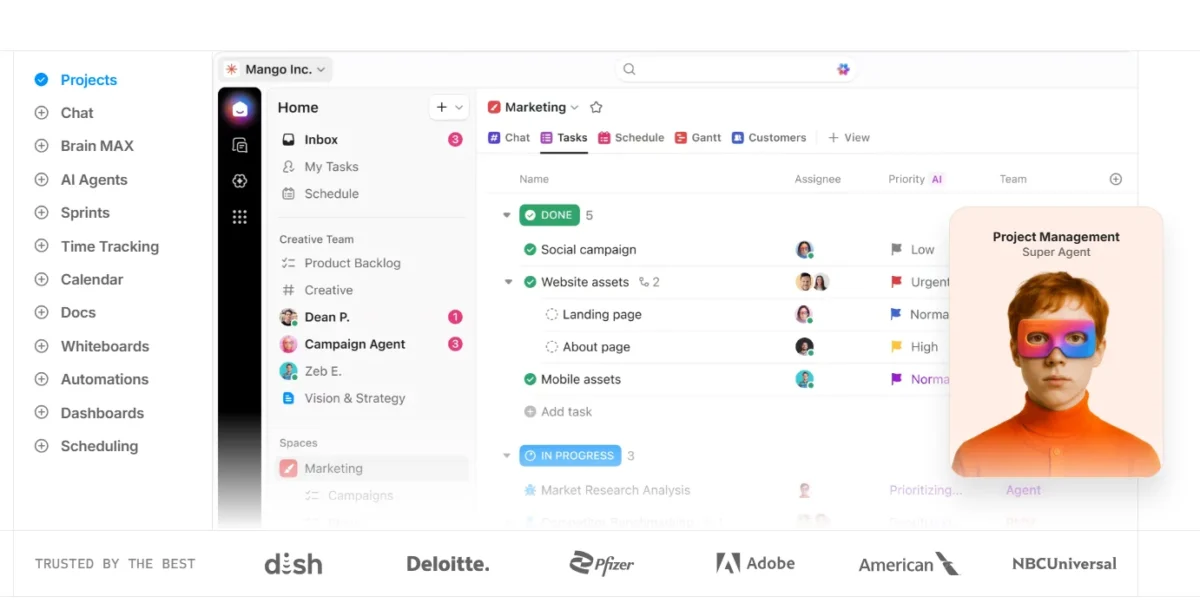
ClickUp is an all-in-one project management platform that centralizes tasks, docs, goals, and team chat in a single workspace. It uses a hierarchy of Spaces, Folders, Lists, and Tasks, and AI to automate workflows, updates, and reporting.
How ClickUp Works
Centralization: Combines Docs, tasks, chat, and progress tracking in one platform.
- Customization: Custom Fields and statuses fit unique team processes.
- Hierarchy:
- Spaces: Departments like Marketing or Engineering
- Folders: Major projects or client accounts
- Lists: Specific projects or Sprints
- Tasks: Units of work with assignees, comments, and attachments
- Automation: “If This, Then That” rules manage task flow and notifications.
- AI Productivity: ClickUp Brain provides status updates, answers queries, and automates reporting.
ClickUp Overview
ClickUp is a highly adaptable project management tool that centralizes tasks, communication, and collaboration in one workspace.

Its features are deeply integrated, allowing teams to handle emails, meetings, and creative work without switching apps.
While it has a steep learning curve, it’s ideal for teams that value flexibility, scalability, and extensive customization over simplicity.
Top ClickUp Use Cases for Teams, Agencies, and Growing Businesses
ClickUp helps teams, agencies, and businesses manage projects efficiently. Agencies can track client work, onboard clients, and log billable hours.
Teams benefit from Agile boards, marketing planning, and remote collaboration. Businesses streamline HR, track goals, automate workflows, and generate executive reports.
Why ClickUp Became a Leading Project Management Tool
It became a top project management tool by unifying tasks, documents, communication, and goals in one flexible platform.
Its popularity stems from reducing reliance on multiple apps and creating a scalable workspace for teams of all sizes. This adaptability allows it to serve diverse industries effectively.
ClickUp Core Features Explained with Hands-On Testing
I find ClickUp really handy for keeping all work in one place. Its features have ups and downs, but overall, they make managing tasks, collaboration, and tracking much easier.
Advanced Task Management with Custom Workflows
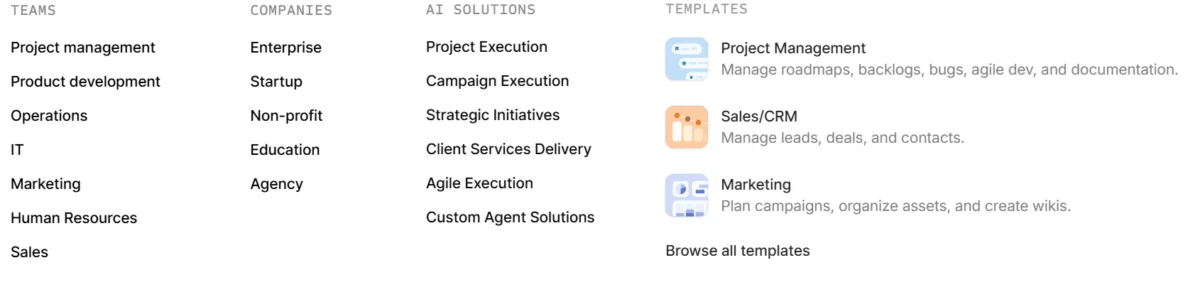
- Hierarchical Organization: Projects structured as Spaces → Folders → Lists → Tasks.
- Custom Views: List, Board, Calendar, and Gantt formats.
- Task Details: Descriptions, assignees, priorities, due dates, time estimates, and custom fields.
- Time Tracking & Collaboration: Built-in time tracking, comments, mentions, real-time editing, and whiteboards.
- Workflow Flexibility: Custom statuses, fields, task types, automations, and reusable templates.
- Recurring Tasks & Dependencies: Automate repeated work and link tasks.
- Multitask Toolbar: Edit multiple tasks at once.
Multiple Work Views: List, Board, Calendar, and Gantt
ClickUp offers List, Board, Calendar, and Gantt views to organize and track tasks efficiently.
- List View: Organize tasks like a to-do list with sorting and filtering.
- Board View: Kanban-style cards for visual task tracking.
- Calendar View: Plan tasks over days, weeks, or months with drag-and-drop scheduling.
- Gantt View: Visual timelines with dependencies and adjustable deadlines.
How Built-In Time Tracking and Resource Management Improves Workflow
- Flexible tracking: real-time or manual logging.
- Start/Stop timers work across desktop, web, and mobile.
- Manual entries include start/end times or total duration.
- Billable and non-billable time categorization.
- Timesheets for weekly log management and submission.
- Integrations with Harvest, Toggl, and TimeCamp.
- Limitations: no native invoicing, no automatic time capture, features vary by plan.
Resource Management
- Workload View shows assignments versus team capacity.
- Time estimates and rollups compare planned vs. actual task duration.
- Resource allocation tools prevent burnout and allow task reassignment.
- Profiles show current, future, and recently completed tasks.
- Dashboards and reporting cards allow detailed time analysis.
Team Collaboration with Docs, Whiteboards, and Chat in ClickUp
Team Collaboration
Facilitates organized teamwork and centralizes communication.
Docs
Good for briefs, reports, and meeting notes alongside tasks.
Whiteboards
Captures ideas and turns them into actionable tasks with owners and deadlines.
Chat
Supports task-focused threads but isn’t a full messaging replacement.
Dashboards, Reporting, and Analytics for Better Project Insights
Dashboards and analytics help teams track progress and identify bottlenecks. Effective dashboards focus on actionable insights, not just visual appeal.
Standardized data is crucial to ensure charts guide decisions accurately.
Key elements:
- Throughput: Items completed per week trend.
- Burndown/Burnup: Remaining vs. completed work over time.
- SLA/Aging: Tracks open items and service level targets.
- Blocked Items List: Owner and unblock-by dates.
- Insight focus: Only include widgets that answer Are we delivering? and Where do we need escalation?
Automation and Workflow Builder for Faster Task Management
Automation in ClickUp reduces manual handoffs and speeds up workflows.
Simple rules like task dependencies, status-change mentions, and auto-archiving closed tasks save time without adding complexity.
Over-automation can create maintenance issues and hit plan limits.
- Task Dependencies: Connect tasks as blocking or waiting on.
- Status Change Mention: Notify the next responsible team member automatically.
- Archive Closed Tasks: Auto-archive tasks marked “Done” to keep spaces tidy.
- Next Steps: Use stale-task nudges and auto-assign rules carefully to avoid workflow clutter.
ClickUp AI & Brain Features (2026 Updates)
ClickUp Brain offers advanced AI tools to streamline workflows and project management. It combines proactive agents, automation, and intelligent data handling across the workspace.
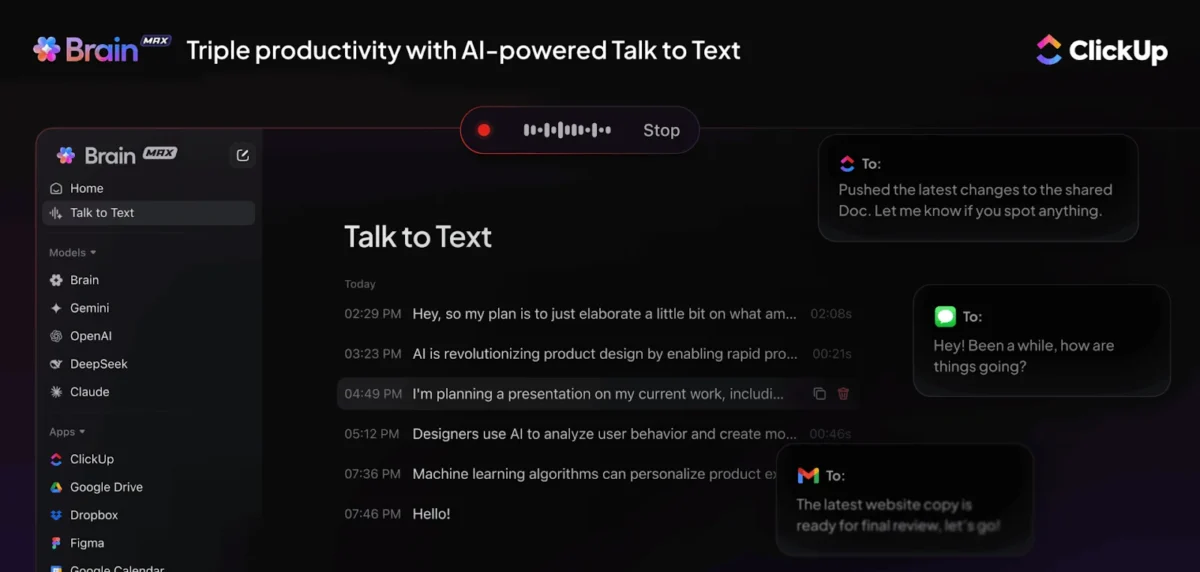
Key Features:
- Super Agents: Human-like AI that manages CRM, workflows, and research tasks.
- Autopilot Agents: Handle tasks autonomously from start to finish.
- Universal Knowledge Manager: Searches and retrieves information across tasks, docs, and linked apps.
- AI Project Manager: Tracks progress, summarizes projects, and flags delayed tasks.
- AI Writer for Work: Creates, edits, translates, and improves text within ClickUp.
- AI Notetaker & Standups: Generates meeting notes and daily standup summaries automatically.
- AI Fields: Auto-populates custom fields with summaries, calculations, and refreshable data.
How Easy Is ClickUp to Use? User Experience Explained
- ClickUp is quick to start but slow to optimize for real teams.
- Clear organization of Spaces, Folders, and Lists is crucial.
- Keep custom fields and statuses minimal to reduce friction.
- Early use of templates helps standardize work.
- Automations accelerate workflows and task management.
User Experience
- Users value centralizing tasks, docs, goals, and communication for efficiency.
- The mobile app has limited functionality and occasional bugs.
- Performance can lag with large lists or complex reports.
- Real-time collaboration features like comments and @mentions improve team coordination.
How Easy Is the ClickUp Setup and Onboarding Process?
It simplifies onboarding with a centralized workspace, automation, reusable templates, and AI insights that help track progress and keep new hires engaged.
Key Features & Steps:
- Centralized Workspace: All onboarding tasks, documents, and communication in one place.
- Reusable Templates: Checklists, handbooks, and SOPs ready for every hire.
- Automated Workflows: Automatic task assignments, reminders, and IT provisioning triggers.
- Progress Monitoring: Dashboards, Timelines, and Calendar views for real-time tracking.
- AI Support: Personalized plans, feedback summaries, and engagement reports.
- Implementation Steps: Prepare workspace → Automate tasks → Set pre-boarding actions → Design role-specific workflows → Centralize docs → Schedule regular check-ins.
How Good Is ClickUp’s Interface, Navigation, and Mobile App?
ClickUp offers a customizable interface with clear navigation and a full-featured mobile app. Tasks are organized hierarchically, viewable in multiple formats, and progress can be tracked via dashboards.
Key Points:
- Interface: Workspace → Spaces → Folders → Lists → Tasks; multiple views (List, Board, Calendar, Gantt, Table).
- Navigation: Sidebar with Home, Notifications, Goals, Favorites; universal search; customizable in ClickUp 4.0.
- Mobile App: iOS/Android; task management, List/Board/Calendar views, Time Tracking, Chat; minor usability limitations.
How New Teams Can Overcome ClickUp’s Learning Curve
ClickUp is powerful but can overwhelm new teams due to its large number of features and customization options.
However, the learning process becomes easier with onboarding resources, templates, and guided training.
- Complex interface and initial setup for beginners
- Occasional slow performance when many features are enabled
- Training resources like ClickUp University, AI Brain, and templates help teams adapt faster
ClickUp Customer Support: Live Chat, Email, and Help Resources
ClickUp offers 24/7 customer support via an AI chatbot for all users and email tickets for human agents. Phone support is limited to top-tier plans.
The AI assistant performs reliably, giving detailed and accurate responses, though human interaction requires a ticket.
|
Platform |
Support Channels |
Availability |
Extra Features |
|
ClickUp |
AI chatbot, email |
24/7 |
Phone for top-tier, demo available |
|
Clockify (CAKE.com) |
Phone, email, live chat |
24/7 human |
Tailored onboarding, concierge for qualified users |
|
Buddy Punch |
Virtual assistant |
Mon–Fri, 9 a.m.–6 p.m. |
Demo available |
|
Hubstaff |
AI chatbot, email, live chat |
Unknown |
Phone support for the highest-tier demo available |
ClickUp Integrations and Automation Ecosystem
ClickUp supports over 1,000 integrations, including Google Calendar, Outlook, Slack, Everhour, YouTube, and Google Drive.
Its no-code automation lets users create custom workflows to reduce repetitive tasks and connect multiple tools like GitHub and HubSpot.
This ecosystem streamlines work and centralizes processes efficiently.
|
Feature |
Details |
|
Integrations |
1,000+ apps (Google Calendar, Outlook, Slack, Everhour, YouTube, Google Drive) |
|
Automation |
No-code, custom If This, Then That workflows |
|
Purpose |
Streamlines tasks, eliminates repetition, and centralizes tools |
ClickUp Native Integrations with Popular Tools Like Slack, Google Drive, and Zoom
ClickUp provides 45 native integrations and a public API, allowing teams to create custom connections tailored to their workflows.
While the platform focuses on building many features in-house, users can also expand their ecosystem through Zapier, which enables connections with over 1,000 additional apps (requires a separate subscription).
Key Integrations Include:
- Tableau Web Connector
- Microsoft Teams
- GitHub
- Slack
- Discord
- HubSpot
Evaluation: While ClickUp covers essential tools, its native integration library is smaller than competitors like Monday.com, giving it a moderate score of 6/10 for integration breadth.
ClickUp API and Third-Party Automation Support for Advanced Workflows
ClickUp supports strong API access and external automation tools. It lets teams connect many apps and automate routine workflows. This reduces manual work and keeps data synced across platforms.
Key Points:
- API Access: Developers can manage tasks, build custom reports, and sync data through secure tokens or OAuth.
- Automation Tools: Triggers, conditions, and actions help automate repetitive processes.
- Third-Party Connections: Works with platforms like Slack, Salesforce, GitHub, and automation services such as Zapier.
- Real-Time Updates: Webhooks allow instant data updates between connected systems.
ClickUp Pricing Plans in 2026: Is There a Free Version and Is It Worth It?
Yes, ClickUp still offers a Free Forever plan in 2026. It allows users to start managing tasks without paying. However, advanced features are mostly available in paid plans.
Free Plan — Features You Actually Get
The free plan includes the core tools needed to manage simple projects.
You can create unlimited tasks, invite team members, and organize work using views like List, Board, and Calendar.
It also provides basic time tracking, collaborative docs, whiteboards, and screen recording for quick communication.
ClickUp Paid Plans Breakdown — Unlimited, Business, and Enterprise Features
It provides three paid plans designed for teams that need more advanced features, higher limits, and stronger workspace control. These plans unlock additional tools that help teams manage complex workflows and scale their work more efficiently.
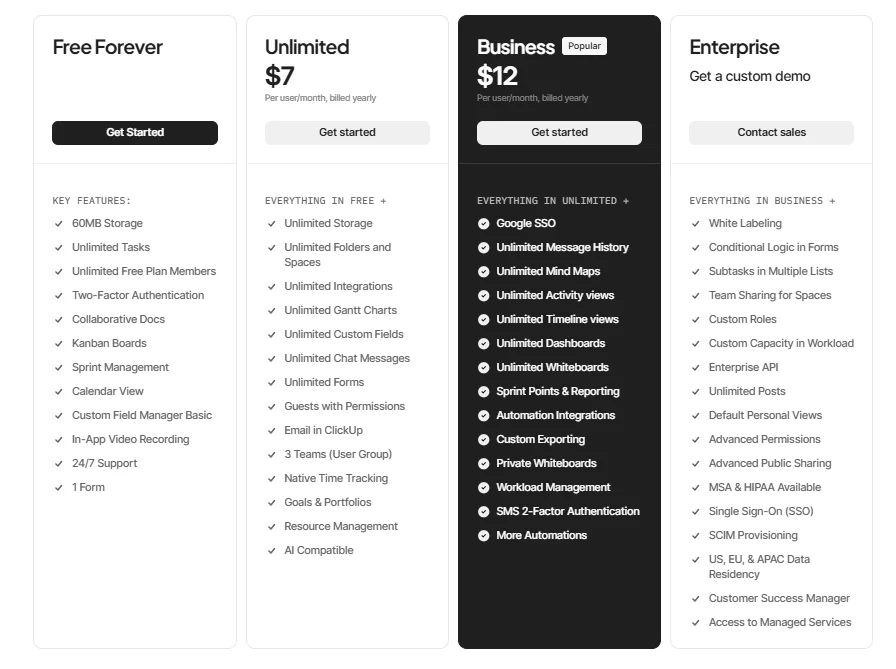
Key Paid Plans:
- Unlimited — $7 per user/month (annual) or $10 monthly. This plan increases storage, integrations, and collaboration features compared to the free version, making it suitable for small teams that need more flexibility.
- Business — $12 per user/month (annual) or $19 monthly. It includes advanced reporting, workload management, time tracking, and more control over workspace settings, which makes it ideal for growing teams.
- Enterprise — Custom pricing for large organizations that require advanced security, detailed permissions, and dedicated support.
Some advanced capabilities are limited to higher tiers.
For example, timesheets are available only in Business and Enterprise plans, while certain administrative and security controls are exclusive to the Enterprise level.
|
Plan |
Annual Price (per user/month) |
Monthly Price |
Best For |
|
|
Unlimited |
$7 |
$10 |
Small teams needing more than the free plan |
|
|
Business |
$12 |
$19 |
Growing teams that require reporting and time tracking |
|
|
Enterprise |
Custom |
Custom |
Large organizations with complex workflows |
Is ClickUp Worth the Price for Teams?
ClickUp is worth the price for teams that need high customization, centralized tools, and scalable workflow management.
Its Unlimited and Business plans provide strong value by combining project management, collaboration, automation, and reporting in one platform.
This reduces the need for multiple tools and can improve team productivity. However, it may be less suitable for teams that prefer simple task tracking or minimal setup.
ClickUp Pros and Cons — Real-World Insights
From real-world use, teams find it powerful and flexible, but its many features can sometimes make it feel complex for new users.
Biggest Advantages of ClickUp for Team Productivity
- Highly customizable fields and views – Let teams design workflows exactly how they need.
- Advanced dashboards and reporting widgets – Make tracking project progress and metrics easier.
- Powerful automations and Brain AI tools – Automate repetitive tasks and speed up work using AI.
- Unified workspace with Docs and Whiteboards – Keeps tasks, notes, and collaboration in one place.
- Competitive pricing vs alternatives – Offers strong features without being overly expensive.
Common Limitations and Drawbacks of This Project Management Tool
- Can get messy without strict setup rules – Projects may become cluttered if rules aren’t followed.
- Complex permission system adds friction – Managing who can do what can be confusing.
- AI has limitations and scattered access – Some AI features are inconsistent or not available to all users.
- Performance slows on large boards – Very big projects can lag or run more slowly.
- Notifications and onboarding require tuning – New users may feel overwhelmed until settings are adjusted.
User Feedback Trends and Ratings for This Project Management Tool
Users generally love ClickUp for its flexibility and powerful features, giving it high ratings across the board—Capterra shows 4.6/5 stars, and most reviewers say they’d recommend it.
Task management, project planning, and time tracking get especially high marks.
On the flip side, many note a steep learning curve, occasional slow performance, and a less polished mobile experience, which can be frustrating at first.
ClickUp vs Asana vs Monday vs Notion: Which Project Management Tool Is Better in 2026?
ClickUp beats Asana, Monday, and Notion with flexible workflows and all-in-one task management for teams.
ClickUp vs Asana: Features, Pricing & Best Tool for Teams in 2026
ClickUp is highly customizable and feature-rich, offering better value for teams that need flexibility, native time tracking, and many views.
Asana is simpler, more intuitive, and faster to adopt, but costs more and relies on third-party tools for time tracking.
Key Features
- Customization: ClickUp deep, Asana simple
- Views: ClickUp 15+ (Mind Maps, Whiteboards), Asana 4 (List, Board, Timeline, Calendar)
- Automation & AI: ClickUp extra cost for AI, Asana included in paid plans
- Time Tracking: ClickUp native, Asana via third-party
- Learning Curve: ClickUp steep, Asana easy
Pricing Comparison
|
Plan / Feature |
ClickUp |
Asana |
|
Free |
Unlimited users |
Up to 15 users |
|
Starter / Unlimited |
$7/user/mo |
$10.99/user/mo |
|
Business / Advanced |
$12/user/mo |
$24.99/user/mo |
|
Best For |
Customization & value |
Simplicity & speed |
ClickUp vs Monday.com — Strengths and Weaknesses
ClickUp excels in customization, all-in-one features, and affordability, but it can overwhelm new users and has occasional performance issues.
Monday.com stands out for ease of use, visual appeal, and stability, though it is costlier and less customizable.
Strengths & Weaknesses Comparison
|
Feature |
ClickUp |
Monday.com |
|
Strengths |
Extreme customization, many views and hierarchy levels; robust free plan; built-in time tracking, docs, and chat; budget-friendly; advanced AI and reporting |
Intuitive, colorful interface; fast onboarding; clear visual dashboards; 200+ templates and simple automation; stable and reliable |
|
Weaknesses |
Steep learning curve; occasional lags; cluttered mobile app |
Pricier for small teams; limited deep customization; weaker time tracking |
Summary Recommendation:
Pick ClickUp for complex, highly customizable projects or budget-conscious teams.
Pick Monday.com for fast setup, ease of use, and visually driven workflows, especially in creative or marketing teams.
ClickUp vs Notion — Which Is Best & When to Choose Each
ClickUp is ideal for structured project management, time tracking, and automation. Notion suits knowledge organization, documentation, and flexible workflows.
Choose based on whether you need task execution or information management.
|
Feature |
ClickUp |
Notion |
|
Focus |
Project Management |
Knowledge & Docs |
|
Setup |
Quick |
Requires building |
|
Best For |
Medium–large teams |
Freelancers & small teams |
|
Time Tracking |
Built-in |
Third-party |
|
Automations |
Strong |
Basic / via Zapier |
|
Structure |
Hierarchical |
Free-form |
When to Choose
- ClickUp: Complex projects, dashboards, automation, large teams.
- Notion: Documentation, flexibility, creative workflows, small teams.
When ClickUp Becomes the Better Choice for Your Team in 2026
ClickUp is ideal when teams need a single platform to manage multiple functions like docs, goals, whiteboards, and time tracking.
It works best for teams willing to invest time in setup and customization. Complex projects benefit most from its flexible workflows.
Who Should Use ClickUp — And Who Should Avoid It
ClickUp suits teams or individuals who want a customizable, all-in-one platform for complex projects, remote collaboration, agile workflows, and detailed reporting.
It’s less ideal for those needing simplicity, basic task management, mobile-first use, fast performance, or immediate compliance.
Best For: Deep customization, remote teams, agile workflows, freelancers/small teams, managers needing dashboards.
Avoid If: You want simplicity, basic to-dos, mobile focus, speed, or instant regulatory compliance.
Best ClickUp Plans for Agencies, Remote Teams, Startups, and Enterprises
- Agencies: manage projects, clients, and billing.
- Remote Teams: collaborate across time zones with dashboards and AI automation.
- Startups: quick setup with scalable workflows.
- Enterprises: secure, customizable, with deep insights.
- Core Features: multiple views, AI-powered updates, and workflow automation.
When ClickUp May Not Be the Right Fit for Your Team
It is powerful but can overwhelm teams needing simplicity. Small teams or tight budgets may find their costs high.
It lacks advanced built-in analytics and isn’t ideal as a specialized CRM or database. Complex setups can become cluttered, and some users report performance delays.
How Safe and Reliable Is ClickUp for Business Teams?
It is a secure and dependable platform for teams of all sizes.
It meets top security standards like SOC 2 Type 2, GDPR, and ISO certifications, with AES-256 encryption and two-factor authentication.
While uptime is high at 99.99%, very large or complex workspaces may experience occasional performance slowdowns.
Security Measures and Data Protection
It protects data with AES-256 encryption at rest, TLS encryption in transit, and SOC 2 Type II compliance.
It uses AWS hosting with 24/7 monitoring, regular penetration testing, and strict access controls.
Privacy is maintained under GDPR, CCPA, and LGPD, with features like two-factor authentication, Single Sign-On, audit logs, and secure data export.
Platform Performance, Stability, and Uptime Explained
- ClickUp is stable and reliable.
- Large projects may slow performance slightly.
- Speed and automation have improved with updates.
- Uptime consistently exceeds 99.9%.
- Occasional refreshes happen, but the platform is smoother than before.
Expert Tips — How Teams Get Maximum Value from ClickUp
Teams maximize ClickUp by structuring workflows, using templates, and automating tasks for efficiency.
Workflow Setup Strategies Used by High-Performance Teams
- Build clear, structured workflows to improve accountability.
- Customize task statuses, fields, and templates for consistency.
- Use automations to reduce repetitive work.
- Visualize workflows with boards, Gantt charts, and workload views.
- Centralize communication and documentation in one platform.
- Leverage AI tools to summarize, predict delays, and automate tasks.
Common Mistakes to Avoid When Using ClickUp
- Overcomplicating hierarchy with too many folders, lists, or spaces
- Misusing custom fields for workflow stages instead of native statuses
- Creating excessive custom statuses for minor steps
- Assigning multiple people to a single task causes accountability confusion
- Failing to use templates for consistent processes and reporting
- Pinning too many views or items, leading to a cluttered workspace
- Neglecting automation to maintain efficiency
FAQs: ClickUp review
Is ClickUp Completely Free?
It is not fully free, but it offers a Free Forever plan for individuals and small teams. It includes basic task management and unlimited users, while advanced features and higher storage require paid plans.
How Much Does ClickUp Cost Monthly?
ClickUp has a Free Forever plan, and its main paid plans cost $10 and $19 per user monthly for Unlimited and Business tiers.
Which Big Companies Use ClickUp?
ClickUp is used by top companies like IBM, Netflix, Spotify, Nike, Airbnb, Stripe, Boeing, Samsung, and MIT for project management and productivity.
Does Netflix Use ClickUp?
Yes, Netflix is reported to use ClickUp. This is confirmed by ClickUp’s marketing materials and LinkedIn data from late 2025. It appears as one of their notable customers.
Why Is ClickUp So Popular in 2026?
ClickUp is popular in 2026 because it combines tasks, docs, chat, and time tracking in one app. Its customizable workflows, automation features, and AI tools help teams collaborate efficiently and save time.
Final Verdict — Is ClickUp Worth Using in 2026?
In this ClickUp review, the verdict is clear that ClickUp can be a powerful productivity platform in 2026 for teams willing to organize and maintain structured workflows.
Its dashboards, automation, and unified workspace make it highly capable for complex project management.
However, teams looking for simple task tracking may find its complexity harder to adopt and manage.
When ClickUp Is the Best Choice
It works best for teams that want one platform to manage tasks, documents, goals, and collaboration.
It’s a strong option for small-to-mid businesses, agencies, and remote teams that need flexible workflows, automation, and multiple project views.
It also suits budget-focused teams looking for powerful features without paying for several separate tools.
When to Consider Alternatives
Teams usually look for alternatives when the platform’s heavy customization makes daily work harder instead of easier.
Common triggers include a complex interface, slower performance, or too much time spent managing the workspace.
In those cases, tools with simpler workflows or stronger, specialized features may be a better fit than ClickUp.
Related

Nitin Alin is the founder of SaaShostly.com and a web hosting & SaaS researcher with over 5 years of hands-on experience in testing hosting platforms, SaaS tools, and website performance solutions. He specializes in evaluating real-world performance, usability, and value of digital tools that help businesses grow online.
Through SaaShostly.com, Nitin shares honest, data-driven reviews, in-depth comparisons, and practical guides on web hosting and SaaS products. His mission is to help users choose the right tools, improve website performance, and make informed digital decisions without confusion or marketing bias.