Honest Trello Review: Pros, Cons, Features & Pricing
If you’ve ever stared at a messy to-do list, wondering how people actually stay organized at work, you’re not alone. Most of us have tried sticky notes, spreadsheets, and a dozen different apps — only to end up more confused than before. That’s probably what brought you here searching for a Trello Review in the first place.
In this post, we’re going to break down exactly what Trello is, how it works, and whether it’s actually worth your time. From its features and pricing to its pros and cons, you’ll get an honest, no-fluff look at the tool so you can decide if it’s the right fit for you.
Trello Evaluation Summary
Trello is one of the most recognized kanban-based project management tools on the market today. It’s built around a simple visual system — boards, lists, and cards — that makes task tracking feel almost effortless for individuals and small teams. After testing it thoroughly, we can say it earns its popularity, but it’s not the perfect fit for everyone.
It scores well on ease of use, visual design, and its free tier. However, it starts to show limitations when teams need advanced reporting, time tracking, or complex workflow management. If your needs are simple to moderate, Trello delivers solid value. If you’re running a large operation, you may outgrow it faster than you’d expect.
Why You Can Trust Us
We don’t just skim product pages and call it a review. Our team actually signs up, sets up real workflows, tests every feature hands-on, and compares the experience against competing tools like Asana, Monday.com, and Notion. We also dig into verified customer reviews from multiple platforms to make sure our findings reflect real-world use.
We have no paid partnership with Trello or Atlassian. Our goal is simple — give you an honest, balanced picture so you can make the right call for your team. Every score in this review is based on our defined testing criteria, which we explain fully in the “How We Test” section below.
Trello Overview
Trello is a visual work management tool developed by Atlassian, the same company behind Jira and Confluence. It launched back in 2011 and has since grown into one of the most widely used team collaboration tools in the world, with millions of users across industries. It’s available on the web, desktop, and mobile, making it easy to access from just about anywhere.
At its core, Trello is designed around the kanban methodology — a workflow system originally developed in manufacturing that organizes tasks into visual columns. Marketing teams use it as a content calendar, developers use it for sprint planning, and freelancers use it to track client work. It’s flexible enough to adapt to many use cases, which is a big part of why it’s stayed relevant for over a decade.
What Is Trello?
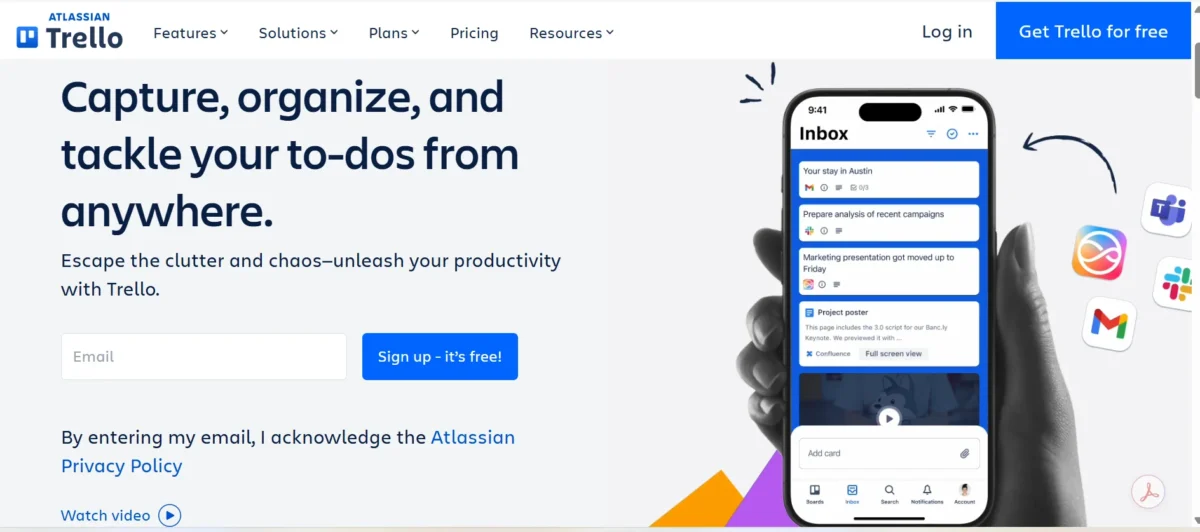
Trello is a card-based organization tool that lets you manage tasks visually using boards, lists, and cards. Think of a board as your project, lists as stages (like “To Do,” “In Progress,” and “Done”), and cards as individual tasks. You drag and drop cards across lists as work moves forward — it’s intuitive from the first minute you use it.
Beyond the basics, Trello offers multiple views, including Timeline, Calendar, Dashboard, and Map view, depending on your plan. It also supports Power-Ups (integrations and add-ons), Butler automation for repetitive tasks, and Atlassian Intelligence features for AI-assisted workflows. It’s more than just a digital sticky-note board — it’s a full-featured visual project management platform when used to its potential.
Pros & Cons
Before diving deeper, here’s an honest look at where Trello shines and where it falls short.
Pros:
- Incredibly easy to get started. Trello’s interface is one of the cleanest in the project management space. You don’t need training or an IT team to set it up. Most users are running a live board within minutes of signing up, which makes it ideal for small businesses, freelancers, and non-technical teams.
- Generous free plan. The free tier includes unlimited cards, up to 10 boards per workspace, and basic Power-Ups. For solo users or very small teams handling straightforward projects, it genuinely covers the essentials without requiring a paid upgrade.
- Flexible for many use cases. Whether you’re managing a content calendar, running a marketing workflow, planning sprints, or organizing a personal task list, Trello adapts well. It doesn’t force you into a rigid structure — you build the system that works for you.
- Strong Power-Ups ecosystem. Trello connects with tools like Slack, Google Drive, Dropbox, Microsoft Teams, Zapier, GitHub, Toggl, and Clockify. The Power-Ups marketplace gives teams the ability to extend Trello’s functionality significantly without leaving the platform.
- Butler automation saves real time. Butler lets you set rules, scheduled commands, and card buttons that automate repetitive actions. For example, you can automatically move a card to “Done” when all checklist items are ticked — small wins that add up quickly.
- Multiple views on paid plans. Timeline view gives you a Gantt-style layout, Calendar view helps with scheduling, and Dashboard view surfaces progress summaries. These views make Trello a more complete work management tool than many people realize.
- Available across all devices. The mobile app is smooth and well-designed. Whether you’re on iOS or Android, the experience stays consistent and responsive.
Cons:
- Limited on the free plan. The 10-board cap is a real constraint as your work grows. Also, free users only get limited automation command runs per month, which can feel restrictive once you start relying on Butler for regular tasks.
- No native time tracking. If your team bills by the hour or needs to log time against tasks, you’ll have to rely on a third-party Power-Up like Harvest or Toggl. This is a noticeable gap compared to tools like Connecteam or Monday.com that include time tracking natively.
- Not ideal for complex projects. Trello doesn’t support task dependencies natively on most plans. If your projects involve tasks that must happen in a specific sequence, managing that in Trello can get messy and manual.
- Reporting is thin. The Dashboard view gives you a basic overview but it’s far from robust. Teams that need detailed analytics, workload tracking, or resource management will likely find Trello’s reporting underwhelming compared to alternatives like Smartsheet or LiquidPlanner.
- Advanced views locked behind paid plans. Timeline, Calendar, and Dashboard views are not available on the free tier. This means casual users evaluating Trello’s full potential don’t actually see what it can do until they upgrade.
- Can get cluttered at scale. Trello works beautifully when projects are small and well-organized. But as boards multiply and cards pile up, things can get visually overwhelming — especially without strong naming conventions and team discipline.
How We Test & Score Tools
We use a structured scoring system across seven categories. Each category carries a specific weight toward the final score, and we test every tool the same way so comparisons stay fair.
Core Functionality (25% of final scoring)
We look at whether Trello delivers on its primary promise as a kanban board and task management tool. This includes how well the board and list system works, how cards behave, and whether the drag-and-drop interface holds up in real use. Core functionality carries the highest weight because if the basics aren’t solid, nothing else matters.
Standout Features (25% of final scoring)
This is where we evaluate what makes Trello different from the crowd. Butler automation, Atlassian Intelligence, Timeline view, Trello Inbox, and the Power-Ups marketplace all fall under this category. We test each feature to see whether it adds genuine value or just looks good on a features page.
Ease of Use (10% of final scoring)
We measure how quickly a new user can get productive on the platform. This includes the onboarding experience, the clarity of the interface, and how intuitive common tasks feel. Trello scores high here thanks to its clean, uncluttered design and minimal learning curve.
Onboarding (10% of final scoring)
We sign up fresh and go through every step of the onboarding workflow — setup wizards, template suggestions, guidance prompts, and first-run experiences. A good onboarding flow reduces friction and helps teams adopt a tool faster.
Customer Support (10% of final scoring)
We test the available support channels, including help documentation, live chat, email, and community forums. Response times, quality of answers, and the depth of the knowledge base all feed into this score.
Customer Reviews (10% of final scoring)
We pull verified reviews from multiple independent platforms and look for patterns — consistent praise, repeated frustrations, and use-case-specific feedback. We weigh recent reviews more heavily since software changes fast.
Value for Money (10% of final scoring)
We compare what each Trello pricing plan offers against what competitors charge for similar features. This isn’t just about the cheapest option — it’s about whether you’re getting a fair return on what you spend.
Core Features
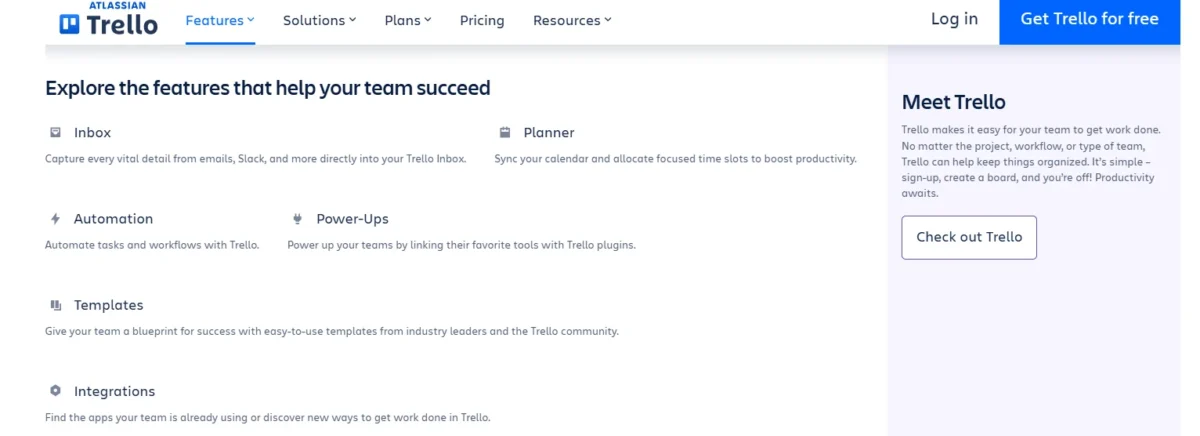
Trello packs a solid set of features across its plans. Here’s a comprehensive look at what you get:
- Kanban boards — The foundation of Trello. Organize any project visually with drag-and-drop simplicity.
- Lists and columns — Create pipeline stages like To Do, In Progress, Review, and Done to mirror your real workflow.
- Task cards — Each card holds a task with descriptions, due dates, attachments, labels, and member assignments.
- Checklists — Break bigger tasks into smaller steps directly inside a card.
- Labels and color coding — Tag cards by priority, type, or team for faster visual scanning.
- Butler automation — Set rules, triggers, and scheduled commands to automate repetitive actions without any coding.
- Timeline view — A Gantt-style view for mapping task timelines and spotting scheduling conflicts (Standard plan and above).
- Calendar view — See all cards with due dates laid out in a monthly or weekly calendar format.
- Dashboard view — A high-level summary of board activity, card counts, and team progress.
- Map view — Plot location-based cards on a map — useful for field teams and logistics workflows.
- Power-Ups marketplace — Connect Trello to hundreds of external tools and add-ons, including Slack, GitHub, Zapier, and Google Drive.
- Trello Inbox — Forward emails directly into Trello to convert them into cards automatically.
- Atlassian Intelligence — AI-assisted features for summarizing cards, generating content, and automating decisions.
- Custom fields — Add structured data like dropdowns, numbers, dates, and text fields to cards for richer information tracking.
- Templates library — Pre-built board templates for use cases like sprint planning, content calendars, onboarding workflows, and marketing campaigns.
- Card mirroring — Reflect the same card across multiple boards so different teams stay in sync without duplicating work.
- Mobile apps (iOS & Android) — Full-featured apps that keep your boards accessible from any device.
- Workspace organization — Group related boards together under a single workspace for cleaner organization.
- Guest access — Invite external collaborators to specific boards without giving them full workspace access.
- Archived cards and boards — Archive completed or inactive items to keep your workspace clean without permanently deleting anything.
Ease of Use
Trello is genuinely one of the easiest project management tools to pick up. The interface is clean, the logic is visual, and you don’t need a tutorial to understand what’s happening on screen. Most people figure out the basics — creating a board, adding cards, moving them across lists — within five minutes of logging in for the first time.
That said, some of the more powerful features take a bit of learning. Setting up Butler automation rules, configuring Power-Ups, or switching between views isn’t complicated but it does require some exploration. Trello handles this well by keeping advanced features accessible without cluttering the main interface. It’s the kind of tool that grows with you rather than overwhelming you on day one.
Integrations
Trello connects with a wide range of popular tools through its Power-Ups system, making it easy to slot into workflows your team already uses. You can link it to Slack for notifications, Google Drive and Dropbox for file management, and Microsoft Teams for broader workplace collaboration. Developers will appreciate native connections to GitHub and Bitbucket for tracking code-related tasks.
For time tracking, tools like Harvest, Toggl, and Clockify integrate smoothly through Power-Ups, which partially fills the gap left by Trello’s lack of native time logging. Zapier opens up even more possibilities by connecting Trello to hundreds of other apps for custom automations. It’s worth noting that the free plan limits you to one Power-Up per board, while paid plans unlock unlimited integrations — a meaningful difference if you rely on multiple tools.
Trello Core Functionalities
Boards, Lists, and Cards
Boards, lists, and cards are the beating heart of Trello’s entire system. A board represents a project or workflow, lists represent stages within that project, and cards represent individual tasks or work items. You move cards from one list to the next as progress happens — it’s a direct application of the kanban methodology, and it works naturally for almost any kind of work.
Checklists
Inside every card, you can add one or more checklists to break a task into smaller, trackable steps. Each checklist item can be assigned to a specific team member and given its own due date, which adds a layer of accountability without creating a whole new card. It’s a lightweight but surprisingly powerful feature for managing multi-step tasks.
Labels, members, and attachments
Labels let you color-code and categorize cards across a board so you can filter and spot priorities at a glance. You can assign multiple team members to a single card so ownership is always clear. Attachments support files from your computer as well as direct links from Google Drive, Dropbox, and other cloud services — keeping all relevant context in one place.
Automation (Butler)
Butler is Trello’s built-in automation engine, and it’s one of the platform’s most underrated features. You can create rules that trigger automatically — like moving a card to a new list when a due date arrives — or set up card buttons that perform multiple actions with a single click. Free accounts get a limited number of command runs per month, but paid plans expand this significantly, making Butler a real productivity multiplier for active teams.
Location features
Trello’s Map view lets you attach a physical location to any card and then visualize all location-tagged cards on an interactive map. This is particularly useful for field service teams, sales reps managing territories, or anyone coordinating work across multiple physical sites. It’s not a feature every team will need, but for those who do, it fills a genuine gap that most kanban tools don’t address at all.
Power-Ups (integrations)
Power-Ups are Trello’s version of plugins or extensions, and they dramatically expand what the platform can do. From connecting to project management giants like Jira to pulling in reporting tools or custom field builders, the marketplace offers hundreds of options. Some Power-Ups are built by Atlassian directly, while others come from third-party developers — either way, they snap into your boards cleanly and don’t disrupt the core Trello experience.
Pricing: Affordable and Clear
| Feature | Free | Standard | Premium | Enterprise |
|---|---|---|---|---|
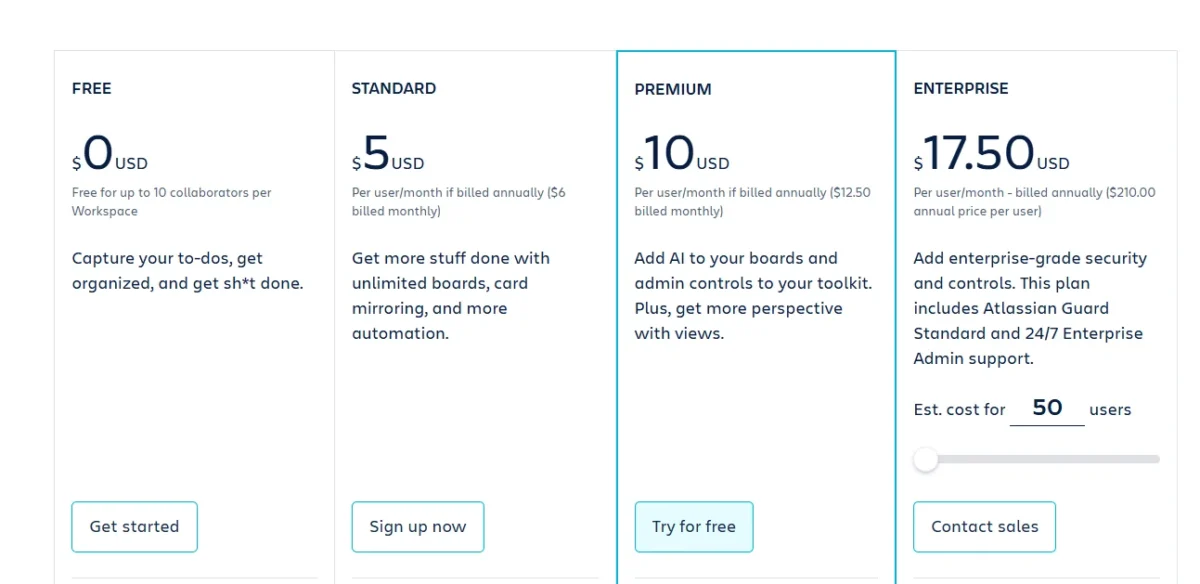
| Price | $0 | $5/user/month (annual) | $10/user/month (annual) | $17.50/user/month (annual) |
| Boards | Up to 10 boards | Unlimited | Unlimited | Unlimited |
| Cards | Unlimited | Unlimited | Unlimited | Unlimited |
| Storage | 10MB/file | 250MB/file | 250MB/file | 250MB/file |
| Workspace Command Runs | 250/month | 1,000/month | Unlimited | Unlimited |
| AI Features | ❌ | AI-powered Inbox Capture | ✅ Full AI | ✅ Full AI |
| Calendar View | ❌ | ❌ | ✅ | ✅ |
| Timeline View | ❌ | ❌ | ✅ | ✅ |
| Dashboard View | ❌ | ❌ | ✅ | ✅ |
| Map View | ❌ | ❌ | ✅ | ✅ |
| Custom Fields | ❌ | ✅ | ✅ | ✅ |
| Advanced Checklists | ❌ | ✅ | ✅ | ✅ |
| Card Mirroring | ❌ | ✅ | ✅ | ✅ |
| Admin & Security Controls | Basic | Basic | Advanced | Enterprise Grade |
| SSO & User Provisioning | ❌ | ❌ | ❌ | ✅ |
| Organization-wide Permissions | ❌ | ❌ | ❌ | ✅ |
Plan Details
Free Plan ($0)
Best for individuals and small teams. It includes unlimited cards, up to 10 boards per workspace, unlimited Power-Ups, 10MB file uploads, mobile apps, due dates, activity logs, and two-factor authentication.
Standard Plan ($5/user/month annually)
Suitable for growing teams that need unlimited boards, advanced checklists, card mirroring, custom fields, saved searches, list colors, and larger file uploads (250MB). It also increases automation to 1,000 command runs per month.
Premium Plan ($10/user/month annually)
Designed for teams needing advanced project management. It adds AI features, Calendar, Timeline, Table, Dashboard, and Map views, unlimited automation, workspace templates, collections, observers, and enhanced admin controls.
Enterprise Plan ($17.50/user/month annually)
Built for large organizations. It includes everything in Premium plus unlimited workspaces, organization-wide permissions, board management controls, multi-board guests, attachment permissions, Power-Up administration, free SSO, user provisioning, and enterprise-level security with 24/7 admin support.
- Personal use / small team: Free
- Small business: Standard
- Project management & reporting: Premium
- Large company / enterprise: Enterprise
Trello App Review
The Trello Review for its mobile experience is largely positive. Both the iOS and Android apps are well-designed, fast, and mirror the desktop experience closely enough that switching between devices feels seamless. You can create cards, update checklists, move tasks between lists, and even trigger Butler automations — all from your phone.
The app handles notifications well, too. You get alerts for due dates, card assignments, and comment mentions without being bombarded. The only real downside is that some of the advanced views, like Dashboard and Timeline, feel a bit cramped on smaller screens. They work, but they’re clearly designed with a desktop in mind. Overall, the mobile app is one of Trello’s stronger areas, and it makes the tool genuinely useful for teams working on the go.
Trello Security
Trello takes security seriously, especially given that it sits inside the Atlassian ecosystem. All data is protected with AES-256 encryption both in transit and at rest, which is the same standard used by major financial institutions. Trello is also GDPR compliant and holds SOC 2 Type II certification, meaning its security practices have been independently audited and verified.
For teams with stricter access requirements, higher-tier plans support SSO (Single Sign-On) and SAML 2.0 authentication, which lets organizations control access through their existing identity providers. Two-factor authentication (2FA) is available across all plans as an added layer of account protection. It’s not HIPAA compliant out of the box, so healthcare teams handling protected data will need to look elsewhere or consult Atlassian directly about enterprise arrangements.
Trello Customer Support
Trello’s support experience varies depending on your plan. Free users are limited to community forums and the online help center, which is reasonably thorough but not always fast enough when you’re stuck on something urgent. Paid plan users get access to priority email support with faster response times, which is a noticeable improvement.
The help documentation is well-organized and covers the most common questions clearly. Atlassian also maintains an active community forum where users and employees answer questions — it’s a genuinely useful resource for troubleshooting and workflow ideas. That said, Trello doesn’t offer live chat or phone support at any tier, which is a gap some teams will find frustrating, especially during onboarding or when setting up complex automations.
Connecteam: The Better Trello Alternative
Trello is a strong tool, but it wasn’t built with every type of team in mind. If you’re managing a field service team, a shift-based workforce, or a business where employees aren’t sitting at desks all day, Connecteam is worth a serious look. It combines task management with scheduling, time tracking, team communication, and HR tools all in one platform — something Trello simply doesn’t offer.
Where Trello vs ClickUp, Trello vs Asana, or Trello vs Notion comparisons often come down to feature depth, Connecteam stands apart because it serves a different kind of worker entirely. It’s designed for frontline and deskless teams who need mobile-first tools that go beyond kanban boards. If your team’s work doesn’t fit neatly into columns and cards, Connecteam is likely the more complete solution.
Conclusion
Trello is a genuinely excellent tool for individuals, freelancers, and small to mid-sized teams who want a clean, visual way to manage work. Its kanban-based approach is intuitive, its free plan is one of the better ones in the market, and features like Butler automation and Power-Ups give it real depth. This Trello Review finds it especially strong for teams running marketing workflows, content calendars, or agile sprints.
That said, it’s not perfect for everyone. If you need native time tracking, robust reporting, task dependencies, or tools built for deskless workers, you’ll likely hit its ceiling before long. Weigh your team’s actual needs against what Trello offers — and if it fits, it’s one of the best visual project management tools available today.
FAQs
Is Trello free to use?
Yes, Trello has a free plan that includes unlimited cards, up to 10 boards per workspace, and limited Power-Ups. It’s a solid starting point for individuals and small teams with basic needs.
What is the difference between Trello and Asana?
Trello is primarily a visual kanban tool that’s simpler and more flexible. Asana offers more structured project management with timelines, task dependencies, and stronger reporting built in natively.
Does Trello have time tracking?
Trello doesn’t include native time tracking. However, you can add it through Power-Up integrations like Harvest, Toggl, or Clockify, which connect smoothly to your boards.
Can Trello handle complex projects?
Trello works well for moderately complex projects but struggles with advanced needs like task dependencies and detailed resource management. Teams with highly complex workflows may find tools like Jira or Smartsheet more suitable.
How many boards does Trello free allow?
The free plan allows up to 10 open boards per workspace. You can archive boards to stay within the limit, and paid plans remove this restriction entirely.
What are Trello Power-Ups?
Power-Ups are integrations and add-ons that extend Trello’s functionality. They connect Trello to tools like Slack, Google Drive, GitHub, and Zapier. Free users get limited Power-Ups per board while paid users get unlimited access.
Is Trello good for remote teams?
Yes, Trello works well for remote teams thanks to its cloud-based access, mobile apps, real-time updates, and collaboration features like card comments, member assignments, and file attachments. It’s especially useful for teams that already use tools Trello integrates with.

Nitin Alin is the founder of SaaShostly.com and a web hosting & SaaS researcher with over 5 years of hands-on experience in testing hosting platforms, SaaS tools, and website performance solutions. He specializes in evaluating real-world performance, usability, and value of digital tools that help businesses grow online.
Through SaaShostly.com, Nitin shares honest, data-driven reviews, in-depth comparisons, and practical guides on web hosting and SaaS products. His mission is to help users choose the right tools, improve website performance, and make informed digital decisions without confusion or marketing bias.