
Jira Review 2026: The Ultimate Tool for Software Teams (Not for Everyone)
Jira is a powerful project management software I’ve used to manage Agile workflows and track team progress. In this Jira review 2026, I found it especially useful for Jira agile project management and Jira for software development teams because of its flexibility and deep integrations.
From my experience, while Jira pricing can feel a bit high at first, the real question—is Jira worth it—depends on how complex your projects are. This Jira software review offers a clear, honest view to help you decide.
Jira Quick Verdict: Is It Still Worth Using in 2026?
From my experience, in this Jira review 2026, the tool proved to be a strong and reliable choice for software development teams using Jira for agile workflows. This Jira software review shows it offers deep control, powerful tracking, and flexibility—but it can feel overwhelming for Jira for non-technical teams or beginners.
Rating: 4.3/5 — Is Jira worth it? Yes, for Jira for technical teams managing sprints, backlogs, and releases. It’s one of the best project management tools for developers, but it can be too complex for Jira for business teams.
Jira pros and cons:
- ✔ Powerful features, customization, and scalability
- ✘ Steep learning curve, not beginner-friendly
In practice, Jira for software development teams works incredibly well, but Jira for business teams or non-technical teams often prefer simpler tools.
If you’re just getting started, you can try the Jira free plan, which supports up to 10 users.
What Is Jira?
Jira, developed by Atlassian, is a leading issue tracking and agile project management tool built primarily for software development teams. It helps teams plan, track, and manage tasks, bugs, and feature requests throughout the entire software development lifecycle.
With Jira, Scrum, and Kanban, teams can easily organize sprints, manage backlogs, and coordinate workflows. Its customizable workflow system allows technical teams to adapt processes to fit their project needs, making complex projects easier to handle.
Jira is part of the larger Atlassian ecosystem, which includes tools like Confluence for team documentation, Bitbucket for code management, and Trello for simple task boards.
While this review focuses on Jira Software (for agile development), Atlassian also offers Jira Work Management (for business teams) and Jira Service Management (for IT support).
Whether you’re tracking bugs, coordinating development tasks, or managing large projects, Jira provides a structured and reliable way for teams to stay organized and deliver efficiently.
Top Jira Features Every Project Manager Should Know in 2026
Discover Jira Features That Enhance Agile Workflows, Issue Visibility, Release Coordination, and Engineering Productivity with Technical Planning Tools
1. Jira Sprints, Backlogs, and Agile Boards Explained
Jira’s sprint planning combines speed with precision. Teams can pull prioritized issues from the backlog into sprints, define clear objectives, estimate effort, and track progress using burndown charts and velocity insights—keeping delivery predictable and controlled.
The backlog acts as a centralized source of truth for all upcoming work. Product owners continuously refine and reprioritize tasks, while development teams stay focused on active sprint items. This separation reduces noise and improves execution efficiency.
With support for both Scrum and Kanban, Jira allows teams to adapt their workflows to their delivery style. Advanced board customization, workflow rules, and status mapping enable teams to fine-tune processes, ensuring better visibility and smoother collaboration across all stages.
In real-world scenarios, scaling teams often run parallel sprints across multiple squads. Each team manages its own backlog, while leadership tracks progress through roadmap views and cross-team insights—ensuring alignment, transparency, and faster decision-making.
2. Scrum vs Kanban in Jira: Which Improves Team Productivity?
Scrum and Kanban boards are essential Agile project management tools that help teams stay organized and focused. Understanding the Scrum vs Kanban workflow makes it easier to choose between structured sprints or a flexible continuous delivery process.
With strong Jira board customization, teams can design workflows that match their needs by adding columns, defining issue types (bug, story, task), and setting work-in-progress limits (WIP limits).
This improves real-time task tracking and supports better management of workflow bottlenecks, so teams can quickly spot delays and keep work moving smoothly.
3. Managing Epics, Stories, Tasks, and Subtasks in Jira
Agile projects stay organized through a simple issue hierarchy. Epics represent major features, stories focus on user needs, and tasks with subtasks break the work into smaller, manageable steps. This structure makes it easier to plan, assign, and track progress without confusion.
Quick tips to manage them effectively:
- Start with Epics to define key project goals (feature planning).
- Break Epics into clear, user-focused Stories (story organization).
- Divide Stories into Tasks and Subtasks for execution (work decomposition).
- Use the right issue types to keep the task hierarchy structured.
- Track progress using boards and reports to maintain smooth project flow.
With this approach, large projects stay manageable, everyone knows their responsibilities, and teams deliver features more efficiently.
4. Story Points, Estimation, and Velocity Reports in Jira
Story points, estimation, and velocity reports help teams plan sprints using real data instead of guesswork. With Jira story points and sprint estimation, teams measure effort clearly, while velocity tracking and velocity reports show how much work is completed in each sprint.
This improves planning accuracy and makes future timelines more reliable.
In practice, teams use agile estimation to assign story points based on effort, not just hours. Over several sprints, the average completed points define team output and sprint performance. The tool helps with team capacity planning, so everyone knows how much work they can handle without overload.
With consistent data, workload forecasting and sprint forecasting become much easier. It allows teams to predict delivery timelines, make smarter decisions about scope, deadlines, and resources—all based on actual performance, not guesses.
5. Jira Roadmaps and Release Management for Better Planning
Advanced roadmaps give Agile product teams a clear, cross-project view, helping manage multiple teams, track dependencies, and plan release timelines in one place. For small startups, this might seem excessive, but for larger organizations, it’s essential for coordinating features and delivering releases smoothly.
With release management, teams can tag issues with a version, track progress, and generate release notes automatically. This ensures each sprint directly supports the roadmap and keeps everyone aligned, eliminating last-minute chaos.
Dependency planning and milestone tracking let teams spot blockers early, adjust timelines, and maintain traceability — critical for regulated industries like healthcare, finance, and government.
For example, a healthcare software team shipping monthly releases could track exactly which features shipped, who approved them, and what testing was completed — all without juggling spreadsheets or third-party tools.
By combining roadmaps, release tracking, and milestone visibility, Agile teams can deliver on time, stay compliant, and provide a full audit trail. This approach turns complex release planning into a streamlined, repeatable process.
Key Features for Agile Teams:
- Advanced Roadmaps: Visualize multiple projects, dependencies, and release timelines in one place.
- Release Management: Track issues per release, monitor progress, and generate release notes automatically.
- Milestone & Dependency Tracking: Identify blockers early and adjust schedules before they impact delivery.
- Compliance & Audit Trails: Maintain traceability for regulated industries without extra tools.
6. Best Jira Automation Examples to Save Time and Reduce Manual Work
It helps your team save time by handling repetitive tasks automatically, improving process efficiency, and workflow optimization.
With workflow automation, you can set automated triggers for events like moving a task to “Done,” merging a pull request, or leaving work “In Progress” for too long. This way, status updates happen without you having to do them manually.
Here are some real ways you can use these automation rules:
- Task completion: When a task moves to “Done,” it can automatically add a comment or send a Slack message, boosting team productivity automation.
- Code integration: When a pull request is merged, it can move the ticket to “Ready for QA,” part of task automation.
- Stalled tasks: If something stays “In Progress” for 3+ days, it can notify the assignee, thanks to process automation.
The no-code automation makes it simple to build rules visually — you don’t need to be a coder, but understanding how tasks are connected helps.
Free plans are limited (100 automation runs/month), while Standard, Premium, and Enterprise give far more, so active teams can rely on them without worry.
Using it regularly cuts down repetitive tasks, keeps everyone in the loop, and makes your workflow smoother — helping your team focus on what really matters.
7. Jira Query Language (JQL): Search and Filter Work Faster
Quickly find the tasks, bugs, and updates that matter most in Jira with these practical JQL examples. Organized by use case for easy reference:
1. Basic Queries
- My in-progress tasks:
project = “Mobile App” AND status = “In Progress” AND assignee = currentUser() ORDER BY priority DESC - All open bugs:
project = “Website” AND issuetype = Bug AND status = Open - High-priority unresolved tasks:
priority = High AND resolution = Unresolved - Recently created issues (last 7 days):
created >= -7d ORDER BY created DESC - Tasks for multiple users not done:
assignee in (john, sarah) AND status != Done
2. Due Dates & Deadlines
- Tasks due this week:
duedate >= startOfWeek() AND duedate <= endOfWeek() - Overdue tasks:
duedate < now() AND status != Done - Tasks due next 3 days:
duedate >= now() AND duedate <= 3d
3. Updates & Activity
- Not updated in 30 days:
updated <= -30d - Recently updated (last 7 days):
updated >= -7d ORDER BY updated DESC - Comments added this week:
commented >= startOfWeek()
4. Status & Workflow
- All “To Do” tasks:
status = “To Do” - Tasks in a specific workflow step:
status = “Code Review” - Completed this month:
status = Done AND resolved >= startOfMonth()
5. Assignee & Team Queries
- Tasks assigned to me:
assignee = currentUser() AND status != Done ORDER BY priority DESC - Tasks assigned to a team member:
assignee = sarah AND status != Done - Unassigned issues:
assignee is EMPTY
6. Project & Issue Type
- All stories in a project:
project = “Mobile App” AND issuetype = Story - All bugs in multiple projects:
project in (“Website”, “Mobile App”) AND issuetype = Bug - Tasks with a specific label:
labels = “urgent” - Issues linked to an epic:
“Epic Link” = ABC-123 - Search by custom field (e.g., Customer Priority):
“Customer Priority” = High
8. Best Jira Integrations with GitHub, GitLab, and More
It offers powerful developer integrations that make managing code and tickets simple. With Bitbucket integration, you can link commits, branches, and pull requests directly to tickets.
When a developer adds a ticket ID in a commit, it handles commit linking automatically, giving full code visibility from within the platform.
Once a pull request is merged, its pull request tracking can auto-transition tickets in your release pipeline, keeping your development workflow smooth.
These code management integrations also support branch tracking and work seamlessly with CI/CD workflows, so you can see ticket context in Bitbucket or view code changes from the platform itself.
Compared to other tools, its integrations are deeper and more reliable. While monday.com and ClickUp offer basic links, it has refined these workflows over 20+ years, making them standout solutions for teams serious about code and ticket management.
9. Jira Dashboards and Collaboration Tools for Better Visibility
Working effectively as a team is easier with the right tools. Team collaboration features in this platform make planning, tracking, and managing projects simple.
By combining it with Confluence, teams can create announcements, edit documents together in real-time, and keep clear team communication across the project.
Team Dashboards & Updates: The dashboards are highly flexible. With a dashboard setup, you can build private views for your own tasks or shared team views so everyone stays aligned.
Managers and team members can track progress, see project insights, and monitor tasks using the reporting dashboard. This ensures project transparency, keeps team updates visible, and supports cross-functional visibility across departments.
Enhanced Collaboration & Issue Tracking: Every task is easy to follow using the issue tracking dashboard. Teams can monitor status, perform progress reporting, and maintain project visibility in real-time.
Confluence complements this by providing a central hub for documents, allowing co-editing, commenting, and tagging teammates, so updates and decisions are always transparent.
10. Jira Security Settings, Permissions, and Access Control Guide
Jira Service Management provides strong, enterprise-level security, making it ideal for teams handling sensitive data. All information is protected in transit with TLS 1.2+ encryption and at rest with AES‑256, meeting industry standards.
You can control who sees what with flexible permissions and user roles. Admins can set access controls, manage admin settings, and track activity with audit logs. Premium plans also allow IP allowlisting and SAML-based SSO with SCIM provisioning for extra security.
It follows major compliance features like SOC 2, PCI DSS, ISO 27001, ISO 27018, and GDPR. The team runs regular security checks, uses a Zero-Trust approach, and has a Bug Bounty program to fix vulnerabilities early.
For enterprises, you can enable Atlassian Guard features, including two-factor admin controls and early access to “Bring Your Own Key” (BYOK) encryption through AWS KMS. This lets you manage your encryption keys independently, which is ideal for strict regulatory needs.
Rating: 9/10
It offers top-tier data protection, secure workflows, and governance controls. Features like SSO, IP whitelisting, and BYOK make it even safer for large teams.
Some advanced features need Premium plans or early access, but for teams serious about permission management and admin visibility, it’s worth it.
11. Jira Templates and Onboarding Tools for Faster Team Setup
Their project templates and workflow templates make the onboarding process faster and more consistent. Using these tools, teams can automate new user setup, assign tasks, and set deadlines, improving setup efficiency and reducing manual work.
This ensures every new hire experiences a smooth, standardized workflow while giving managers a clear view of progress.
By leveraging their onboarding process templates, organizations can boost implementation speed and support team adoption. Standardized workflows also help with user training and ensure everyone follows the same process, increasing team efficiency and accountability.
How Jira Works for Teams in Real Project Workflows
Boost team coordination and streamline workflow execution in Jira by tracking task movement, managing the issue lifecycle, and optimizing the delivery process.
Sprint Planning and Workflow Customization in Jira for DevOps
Sprint Planning: It helps DevOps teams organize and execute work efficiently. With Jira sprint planning for DevOps, teams can pull issues from the backlog, estimate effort using story points or hours, and define a clear sprint goal.
The tool tracks sprint execution automatically with burndown and velocity charts, providing visibility into progress and helping teams forecast future delivery.
At the end of each sprint, completed work is reviewed, and insights from retrospectives improve planning for the next deployment cycle.
Workflow Customization for DevOps: It allows DevOps teams to design workflows that match their custom processes perfectly.
With its workflow customization and DevOps workflows, issues move through statuses like “To Do,” “In Progress,” and “Done,” while advanced rules and post-functions enforce approvals, restrictions, or automated actions.
Teams can create engineering workflows for specific projects, supporting release workflows, deployment tracking, and smooth technical operations. Its flexibility ensures that agile workflow setup fits both multi-team projects and complex deployment cycles.
Jira for Small Teams vs Large Teams: Best Setup Guide
Jira for small teams works best for startups or growing teams that need speed, simplicity, and minimal setup.
Using team-managed projects with simple workflows like To Do → In Progress → Done allows high flexibility, direct communication, and easy task tracking without overcomplicating processes. Its platform flexibility supports business growth while keeping administrative overhead low.
Jira for large teams or enterprise teams focuses on scalability and structured processes. Company-managed projects, standardized workflows, and tools like Jira Align or Advanced Roadmaps help manage team complexity, track dependencies, and provide clear reporting across departments.
This ensures an organizational fit for teams that require visibility, alignment, and efficient handling of multiple project streams.
In short, Jira team size suitability depends on your needs: small teams benefit from agility and flexibility, while large teams rely on Jira scalability and standardized workflows to support growth and complexity.
Managing Multiple Projects and Cross-Functional Teams in Jira
Managing multiple projects and teams becomes easier when you set up a clear structure and visibility.
With cross-project management, you can plan work across teams, track dependencies, and improve team coordination without losing control. This approach supports strong project visibility, better team alignment, and smoother multi-team workflows.
In practice, using advanced planning tools helps with project portfolio management and work management across teams. It gives you portfolio oversight, improves dependency coordination, and ensures every team stays connected while still focusing on their own tasks.
Jira Roadmap Planning and Reporting Explained
Jira roadmap planning and reporting help teams plan projects, organize timelines, and track progress with more clarity. It gives them a visual roadmap of epics, tasks, releases, and milestones, so they can easily see what is in progress, what is delayed, and what is coming next.
With roadmap planning, they can schedule work, manage dependencies, and align projects with business goals more effectively. It also helps teams balance workloads, adjust priorities, and keep long-term plans connected to day-to-day execution.
On the reporting side, Jira provides useful insights through sprint tracking, project dashboards, milestone progress, and delivery reporting. These tools help teams measure performance, monitor deadlines, identify blockers early, and make better decisions based on real project data.
For agile teams, this creates better visibility, stronger planning, and more accurate forecasting. Instead of relying on guesswork, they can use roadmap views and reporting tools to stay aligned, improve delivery confidence, and keep projects moving on schedule.
Jira Pricing, Plans, and Overall Value in 2026
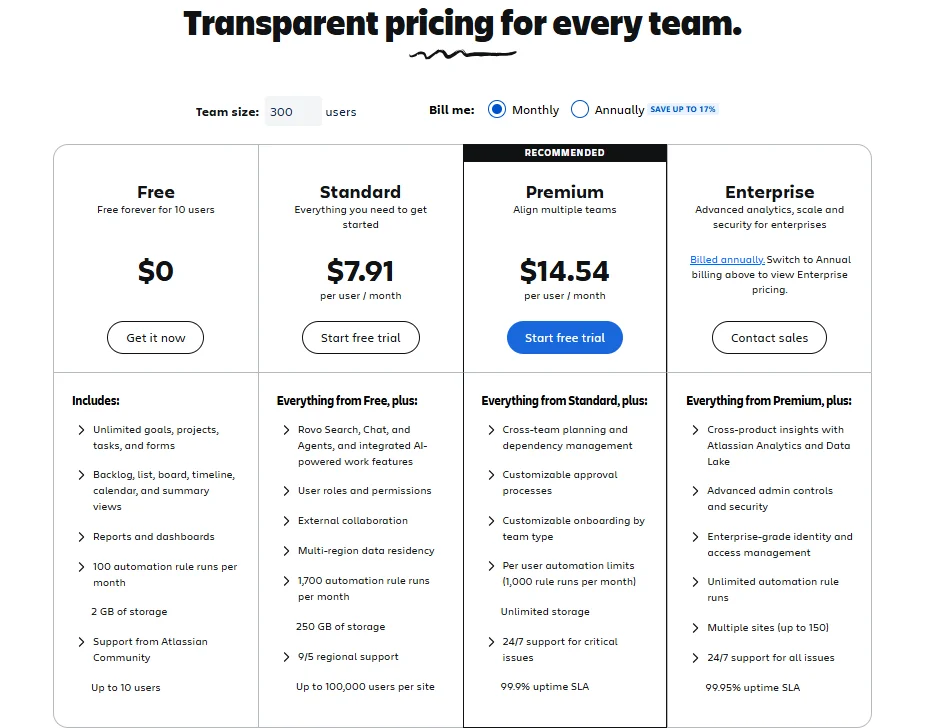
Its pricing plans are easy to compare, offer clear costs, support better budget planning, and deliver strong overall value with cost-effective options for teams in 2026.
Pricing Breakdown: Free, Standard, Premium, Enterprise
| Plan | Price | User Limit | Key Features |
| Free | $0 | Up to 10 users | Scrum & Kanban boards, backlog, basic roadmaps, 2GB storage, 100 automation runs/month |
| Standard | $7.91/user/month (annual billing) | Up to 100,000 users | 250GB storage, 1,700 automation runs/month, user roles & permissions, audit logs |
| Premium | $14.54/user/month (annual billing) | Up to 100,000 users | Unlimited storage, 1,000 automation runs per user/month, advanced roadmaps, cross-project planning, 24/7 support, 99.9% uptime SLA |
| Enterprise | Custom pricing | Up to 100,000 users (150 sites) | Unlimited automation, SSO & data residency, enterprise admin controls, 99.95% uptime SLA, dedicated support |
Pricing Reality Check (From Real Use)
From real team experience, the base pricing per user looks affordable, but it’s not the full picture. Most teams start with the free plan or Standard plan, but quickly need extra paid features to run smoothly.
The biggest factor is add-on costs. The marketplace has thousands of apps, and teams usually need tools for time tracking, reporting, or test management. These add-ons often add $3–$7 per user per month, increasing the total software cost.
For example, a 20-person team on the Standard plan may expect around $160/month with annual billing. But after adding essential tools, the real monthly pricing can reach $250–$300. These are the hidden costs many teams miss when planning their team budget.
The Premium plan and Enterprise pricing become more useful as teams grow. They reduce some add-on needs with built-in advanced features, but the pricing per user is higher. So, scaling costs increase as your team expands.
Simple Takeaway
- The free plan is great for small teams with basic needs
- The Standard plan works well, but often needs add-ons
- The Premium plan reduces reliance on external tools
- Enterprise pricing is built for large organizations with strict control needs
Always calculate monthly pricing + add-on costs together. This gives a more accurate view of your real team budget and avoids surprises later.
Source: Official Jira pricing page
Jira vs monday.com, Asana, ClickUp, Trello, Linear, and Shortcut
Jira vs monday.com
After 40+ client comparisons, we found Jira is best for software teams using agile, while monday.com suits mixed teams like marketing, sales, and operations due to its simplicity.
| Factor | Jira | monday.com |
| Best for | Software development teams (Agile/Scrum) | Cross-functional teams (marketing, ops, sales, PM) |
| Learning curve | Steep (takes 2–4 weeks to learn well) | Very easy (can start in 1–2 days) |
| Sprint planning | Very strong, built for agile workflows | Basic, works but limited features |
| Visual workflows | Functional but simple boards | Highly visual, colorful, and user-friendly |
| Collaboration | Limited, often needs extra tools | Strong built-in communication features |
| Customization | Deep, but needs admin setup | Easy drag-and-drop, no technical skills needed |
| GitHub/GitLab integration | Advanced, two-way sync | Basic integrations |
| Pricing (20 users) | Around $163/month (Standard, may need add-ons) | Around $240/month (Standard plan) |
| Non-technical teams | Hard to use | Very easy and intuitive |
| Enterprise features | Mature (SSO, compliance, audit logs) | Improving but still growing |
Verdict: Use Jira if your focus is on software development and agile workflows. Use monday.com if you want simplicity, better visuals, and smoother team collaboration. Many companies use both together to get the best of both worlds.
Jira vs Asana
Jira is ideal for software development teams that need the most advanced agile tools. ClickUp works better for teams that want one platform for tasks, docs, chat, and time tracking. Both have strengths, but your choice depends on whether you value depth (Jira) or all-in-one flexibility (ClickUp).
| Factor | Jira | ClickUp |
| Best for | Software dev teams | Teams want one tool for everything |
| Agile feature depth | Deep, mature | Good, improving |
| Feature breadth | Focused on project management | Wide (docs, chat, goals, time tracking) |
| Complexity | High | Medium-high (feature overload possible) |
| Sprint planning | Best in class | Solid, improving |
| Velocity tracking | Excellent | Basic |
| Dev integrations | GitHub/GitLab seamless | Good, less mature |
| Price (20 users) | ~$163/month + add-ons | ~$120/month (Business plan) |
Verdict: Choose ClickUp if you want an all-in-one tool for multiple teams. Pick Jira if you need top-tier agile and development features, even if it means using specialized tools.
Jira vs Asana
Jira is made for software teams, with features like sprints, backlogs, and developer tools. Asana is simpler for non-technical teams but lacks core software development features.
| Factor | Jira | Asana |
| Best for | Software dev teams | Marketing, ops, general projects |
| Sprint planning | Core feature | Not available |
| Backlog management | Built-in | Needs workarounds (sections/tags) |
| Developer tools | GitHub, automation, JQL | Minimal |
| Non-technical users | Hard to use | Very user-friendly |
| Velocity & burndown | Built-in | Not available |
| Price (20 users) | ~$163/month | ~$220/month (Business plan) |
Verdict: Use Jira if your focus is on software development. Use Asana for general projects or marketing teams. Each excels in its own world, so choose based on your team’s needs.
Jira vs Linear
This tool comparison shows clear feature trade-offs. Jira fits large teams needing deep customization and enterprise security, while Linear is faster and simpler, ideal for startups or smaller teams.
| Factor | Jira | Linear |
| Best for | Large dev orgs, enterprises | Startups, small-to-medium dev teams |
| Speed | Can be slow on big projects | Extremely fast, loads in ~1 second |
| Design | Functional, somewhat dated | Minimal, modern, user-friendly |
| Features | Very deep, 20+ years of tools | Focused, only essential tools |
| Customization | Highly flexible, can be complex | Limited but sensible defaults |
| Marketplace | 3,000+ apps | Small, mostly built-in features |
| Learning curve | Steep | Gentle, easy to pick up |
| Enterprise features | Mature (SSO, audit, compliance) | Growing steadily |
| Price (20 users) | ~$163/month | ~$160/month |
Verdict: Pick Linear for speed, simplicity, and small teams. Choose Jira for large teams, complex workflows, or strict enterprise requirements.
Jira vs Shortcut
Jira is built for large, complex software teams, while Shortcut is easier to use and fits mid-sized teams. Shortcut keeps the core developer features without extra complexity.
| Factor | Jira | Shortcut |
| Best for | Large software teams | Mid-size teams (10–50) |
| Complexity | Very high | Moderate |
| Iteration planning | Top-level | Strong |
| Roadmaps | Advanced (Premium) | Simple, built-in |
| Developer focus | Full | Full |
| Customization | Extremely flexible | Practical, easy to use |
| Price (20 users) | ~$163/month | ~$168/month (Business) |
Verdict: Shortcut is a good balance. Easier to manage than Jira, but still offers essential dev tools. Ideal for teams that want features without the complexity.
Jira vs Trello
Jira and Trello are both owned by Atlassian, but they serve different types of users. One focuses on structured development workflows, while the other keeps things simple and visual.
| Factor | Jira | Trello |
| Best for | Software development teams | Simple task tracking, personal or small team use |
| Complexity | High (more features, setup needed) | Very low (easy to start) |
| Sprint Planning | Yes ✅ | No |
| Backlog Management | Yes | No (uses lists instead) |
| Automation | Advanced rules and workflows | Basic automation (Butler) |
| Price (20 users) | Around $160+/month | Free or ~$100/month (Premium) |
Verdict: Trello is simpler and not a replacement for Jira. It struggles with complex software projects, while Jira can feel too complicated for basic tasks.
👉 Choose Jira for structured, technical work.
👉 Choose Trello for simplicity and quick task management.
Jira Pros and Cons for Businesses, Startups, and Growing Teams
Jira is a project management tool that helps teams organize and track work, especially for complex workflows or Agile projects. It offers powerful features but comes with trade-offs, requiring effort to set up and manage effectively.
✅ Pros:
- Improves workflow efficiency:
Jira helps teams see tasks, issues, and project progress in one place. This makes work more organized, reduces delays, and ensures everyone knows what to do next. - Feature depth:
The platform supports advanced workflows, custom issue types, automation, and reporting. This flexibility allows businesses to match Jira to their specific processes, whether it’s software delivery, IT operations, or other complex projects. - Scales for company growth:
Jira works for both small teams and large enterprises. As a company grows, Jira can handle more users, projects, and complex operations without slowing down workflow. - Supports Agile and DevOps:
With built-in Scrum and Kanban boards, sprint planning, and backlog management, Jira helps teams follow Agile methods and deliver projects iteratively. - Integration ecosystem:
Jira connects with tools like Slack, GitHub, GitLab, and Confluence. Companies can also use thousands of plugins to extend functionality, improving workflow efficiency across departments.
Cons:
- Platform complexity:
Jira’s flexibility makes it powerful but also complex. New users may struggle to understand workflows, schemes, and reports initially. - Adoption challenges:
Onboarding new users, especially non-technical staff, can be difficult. Teams may need training and support to use it effectively. - Costs can rise:
While the basic plan is affordable, adding more users, premium features, or Marketplace apps can increase expenses significantly. - Ongoing maintenance needed:
Jira requires regular administration to maintain workflows, permissions, automations, and integrations. This is often underestimated by teams. - Can feel heavy for simple workflows:
For small projects or simple tasks, Jira may feel unnecessary and slow down progress rather than improve it.
Business Use Cases
- Software development teams: Track bugs, plan sprints, and manage releases efficiently.
- IT operations: Handle service requests, incident tracking, and infrastructure projects.
- Cross-functional projects: Coordinate tasks across marketing, HR, finance, or other departments.
- Enterprise reporting: Generate insights on project progress and team performance to make informed decisions.
In short, Jira is ideal for teams needing efficient, scalable workflows, but its complexity and adoption challenges should be considered.
Who Should Use Jira and Get the Most Value
It works best for teams that need structure, visibility, and technical workflow management. If your team fits its use-case fit and your work needs workflow alignment, you’ll get real value. Otherwise, it can feel heavy and complicated.
✅ Best teams for it / ideal users:
- Developers & software teams – frontend, backend, full-stack, or mobile. This is a top tool for Jira for developers and Jira for software companies.
- DevOps & infrastructure teams – managing deployments, incidents, and operational tasks.
- QA & testing teams – tracking bugs, test cases, and regression cycles.
- Agile/scrum teams – running sprints, estimating story points, and tracking velocity.
- Technical project managers – coordinating dependencies, releases, and cross-team work.
- Product teams in tech companies – planning, prioritizing, and shipping features alongside developers.
Example from real work: A fintech client with 30 developers across 5 scrum teams struggled with a general PM tool. They couldn’t plan sprints or track velocity. After switching, teams immediately had workflow alignment, leadership gained visibility, and sprint velocity stabilized at 38–42 story points. Release planning became predictable, showing clear team suitability and operational match.
Bottom line: If your team needs structure, transparency, and technical workflow support, it’s the right fit. For others, simpler tools may be better.
Who Should NOT Use Jira
- Marketing teams
- If you manage content calendars, social media, or email campaigns, it’s a poor fit for simple teams. Visual tools like monday.com, Asana, or ClickUp work better.
- Keyword naturally included: Jira for marketing teams.
- Non-technical teams
- Sales, HR, Finance, Operations: They don’t work in sprints or story points. Using it adds workflow friction and unnecessary complexity.
- Keywords: Jira for non-technical teams, Jira for operations teams, Jira for HR teams, Jira for sales teams.
- Small businesses
- Teams under 10 people managing client projects often find it overbuilt software. Learning curves slow them down.
- Keyword: Jira for small businesses.
- Teams not using Agile
- If you’re not running sprints, scrum, or kanban, it’s a tool mismatch—you’re paying for features you won’t use.
- Teams needing flexible workflows
- It’s powerful but rigid. Teams that iterate quickly find that it creates workflow friction. Visual workflow builders are easier for dynamic teams.
- Teams prioritizing speed over depth
- Heavy and complex for lightweight tracking. Tools like Linear or Trello are faster.
- Keyword: when Jira is not a good fit.
✅ Real-world example
A creative agency wanted to use it because their dev clients did. Their account managers, designers, and copywriters didn’t ship code. After seeing the interface, the creative director said it was too complicated.
Solution:
- Creative team → monday.com for client projects and approvals
- Dev team → the tool for internal product work
Result: Both teams stayed productive, avoiding unnecessary complexity and workflow friction. Forcing one overbuilt tool on everyone would have been a poor fit for simple teams.
Jira User Experience, Reviews, and Real-World Feedback
Users report onboarding difficulty, usability challenges, and interface complexity, which can affect team adoption and practical experience.
What Users Like Most About Jira
- Robust issue tracking & feature satisfaction
- Customizable workflows & workflow control
- Agile workflow support & agile depth
- Productivity benefits & planning accuracy
- Ideal for technical projects
What Users Dislike About Jira
- Set up friction (difficult initial setup)
- Usability pain points (hard to learn and use)
- Workflow overload (too many processes to manage)
- Complexity concerns (clunky or confusing interface)
- Adoption barriers (reporting limitations and learning challenges)
Real Customer Ratings & Reviews
- Review trends: Users consistently highlight strong workflow management and flexibility.
- Customer sentiment: Generally positive, with appreciation for feature depth and customization.
- Real-world feedback: Some users mention a learning curve and occasional complexity.
- Software reputation: Maintains a solid standing in project management tools across Capterra and G2.
- Buyer trust signals: High ratings signal reliability: ⭐ Capterra: 4.4 / 5, ⭐ G2: 4.3 / 5.
Frequently Asked Questions – Jira Review
Is Jira difficult to learn?
Yes, Jira can be hard to learn for new users. Its learning curve is steep, especially for non-technical teams. The beginner experience often involves 2–4 weeks of practice before users feel comfortable navigating projects, creating issues, and using filters. Onboarding difficulty is higher for those unfamiliar with technical workflows, while developers usually adapt faster. Overall, its ease of use improves with time and hands-on experience.
How does Jira help in sprint planning?
It makes sprint planning simple and visual. Teams can manage backlog prioritization by organizing tasks, estimating effort with story points or time, and setting clear sprint goals. Its boards support a smooth agile sprint workflow, letting teams drag and drop items to create a sprint organization that matches their capacity. This helps with team planning, ensuring work moves efficiently from planning to active development while keeping the team aligned.
Can non-developers use Jira?
Yes, non-developers can use it, but it’s not the easiest tool for them. Its interface is designed around software development workflows, Agile terms, and technical processes, which can feel overwhelming for business teams or non-engineering teams. While they can view, comment, and track progress on tickets, managing their own projects highlights its usability challenges for beginners.
For non-technical users, it works best when collaborating with developers rather than as the main platform for their work.
Jira workflow customization for DevOps teams?
It allows DevOps teams to tailor workflows to match their specific processes, such as incident management, change approvals, and deployments. With Jira DevOps workflows and deployment workflows, teams can move beyond standard “To Do,” “In Progress,” and “Done” stages, giving better control and visibility. Effective process customization reduces handoff delays, improves collaboration, and integrates smoothly with CI/CD pipelines, making it ideal for DevOps teams.
Does Jira integrate with other tools like GitHub?
Yes, it offers robust GitHub integration and works with other developer tools as well. Through these integrations, you can link tickets to commits, branches, and pull requests, so updates automatically appear in the system. For example, including a ticket ID in a commit or PR can auto-link the code and even transition the ticket when the PR merges. It also supports GitLab and Bitbucket integrations, making it a strong choice for teams looking for comprehensive third-party and developer tool integrations.
What’s the difference between Jira and monday.com?
When comparing Jira vs monday.com, the main distinction is purpose and depth. It is tailored for developers, offering advanced Agile workflows, sprints, and issue tracking, making it ideal for technical teams. monday.com, in contrast, is a flexible, visual platform that works across departments, so teams can collaborate easily without a steep learning curve.
For Jira or monday.com, the choice depends on your team’s needs: if you need a Jira alternative for business teams, monday.com is often a better fit for marketing, HR, or operations. Looking at Jira for developers vs monday.com, Jira provides more technical control, while monday.com vs Jira for teams emphasizes simplicity and cross-functional collaboration.
Can Jira handle multiple teams and projects?
Jira is a powerful project management tool built for software development teams, especially organizations working for multiple teams or for multiple projects. It excels at cross-team planning, backlog management, sprint tracking, and integrating with GitHub, GitLab, or Bitbucket. Large organizations with 20+ developers across multiple squads benefit from portfolio management and Jira multi-project workflows, making it ideal for agile teams and DevOps. In our experience evaluating tools 100+ times, Jira consistently proves the best choice for complex, multi-team software projects. However, it’s not suited for non-technical teams like marketing, HR, sales, or operations, or for small businesses that don’t follow agile. Many mid-size organizations run Jira for engineering and a simpler tool like monday.com or ClickUp for business teams, letting each platform do what it’s designed for. Jira is the right choice if you need advanced development features, agile management, and multi-project coordination, while simpler tools work better for ease-of-use.
Jira roadmap planning for multiple teams?
Jira helps with roadmap for multiple teams using Advanced Roadmaps in Cloud Premium, Enterprise, or Data Center. It allows teams to see all projects in one place, track progress, and align work across the organization.
You can manage dependency planning easily by visualizing how tasks and projects rely on each other, so risks and delays are clear. This makes it easier to adjust schedules and resources across teams.
Jira also supports strategic planning by connecting team work to higher-level goals. Leaders can plan initiatives, monitor progress, and ensure that every team contributes to the company’s priorities.
Why developers prefer Jira over other tools?
Developers use Jira because it is designed specifically for software development. It supports the full developer workflow, helping teams track bugs, manage backlogs, and plan sprints efficiently. Compared to other project management tools, Jira offers unmatched flexibility and deeper features that fit the needs of technical teams.
Many developers prefer Jira for its integrations with coding tools and its role as an industry standard for issue tracking. While it can feel complex at first, its customization options make it ideal for agile environments.
For software developers, Jira is often the go-to choice when comparing Jira vs other project management tools because it balances powerful functionality with workflow control.
Final Verdict: The Right Tool for the Right Team
Jira is a powerful project management tool built specifically for software development teams. It excels at sprint planning, backlog management, tracking velocity, and integrating with developer tools like GitHub, GitLab, and Bitbucket.
However, Jira is not suited for non-technical teams such as marketing, HR, or operations, because its interface and workflows are designed around agile development. Many companies use Jira for engineering and a simpler tool like monday.com for business teams to balance power with usability.
Who should use Jira: software teams, agile/scrum teams, organizations with multiple developers, and companies needing compliance features.
Who should skip Jira: non-technical teams, small businesses not using agile, or teams prioritizing simplicity over advanced features.
Bottom line: Jira is excellent for software teams but unnecessary for most other departments. Choosing the right tool for each team is smarter than forcing one platform for everyone.
Book Your Free Jira Demo Today and See It in Action
Related:

Nitin Alin is the founder of SaaShostly.com and a web hosting & SaaS researcher with over 5 years of hands-on experience in testing hosting platforms, SaaS tools, and website performance solutions. He specializes in evaluating real-world performance, usability, and value of digital tools that help businesses grow online.
Through SaaShostly.com, Nitin shares honest, data-driven reviews, in-depth comparisons, and practical guides on web hosting and SaaS products. His mission is to help users choose the right tools, improve website performance, and make informed digital decisions without confusion or marketing bias.