Microsoft Project Review: Pricing, Features, Pros & Cons
Staring at a wall of Gantt charts and wondering if there’s a better way? You’re not alone. Half the people searching for a Microsoft Project Review are stuck deciding whether to stick with it or jump ship to something shinier. Maybe your team’s grumbling about the learning curve, or you’re just tired of paying for project management software that feels like overkill for what you actually need.
Good news: you’re in the right spot. This Microsoft Project Review breaks down what actually works, what doesn’t, and whether it’s worth your money. No fluff, no sales pitch — just an honest look at task tracking, pricing, and real-world usability so you can decide for yourself.
This review was researched and written using hands-on testing, publicly available pricing data, and comparison against leading competitors, current as of this month in this years.
A Quick Overview
Before diving into the weeds, here’s the short version. Microsoft Project is a project scheduling tool built for teams juggling complex timelines, multiple resources, and tight budgets. It isn’t the friendliest tool on the block, but it’s one of the most capable when the job calls for real firepower.
| Category | Rating (out of 5) | Quick Take |
| Ease of Use | 3.0 | Steep learning curve, powerful once mastered |
| Features | 4.6 | Deep scheduling, resource, and portfolio tools |
| Pricing | 3.5 | Fair for enterprises, pricey for solo users |
| Integrations | 4.7 | Excellent with Teams, SharePoint, Power BI |
| Customer Support | 3.4 | Solid documentation, slower live support |
| Overall Score | 3.9 / 5 | Best for structured, resource-heavy projects |
Microsoft Project Pros & Cons
No tool is perfect, and Microsoft Project is no exception. It shines in specific scenarios and stumbles in others. Here’s the honest breakdown before you commit any budget to it.
Pros:
- Powerful Gantt chart software with detailed scheduling controls
- Strong resource management and workload balancing
- Deep Microsoft 365 integration (Teams, SharePoint, Power BI)
- Handles both Agile and Waterfall project management
- Reliable for large, multi-team enterprise project management
- Built-in portfolio dashboards for executive-level visibility
Cons:
- Steep learning curve for beginners
- Pricier than lightweight alternatives like Trello or Notion
- Desktop app still feels dated compared to newer cloud-first tools
- Mobile experience lags behind competitors
- Overkill for small teams or simple task lists
Microsoft Project Pricing & Plans
Price update: Microsoft has kept its tiered subscription model steady this year, though bundled discounts through Microsoft 365 enterprise agreements remain the best way to cut costs. Always confirm current pricing directly on Microsoft’s site, since Microsoft licensing terms shift periodically.
| Plan | Monthly Price (per user) | Best For |
| Planner Basic | Included with M365 | Simple task boards, small teams |
| Planner Plan 1 | ~$10/user | Basic planning, no desktop app |
| Planner and Project Plan 3 | ~$30/user | Full scheduling, desktop + web app |
| Planner and Project Plan 5 | ~$55/user | Enterprise portfolio management, resource management |
Annual billing typically saves a bit over monthly subscription rates. If you already pay for Microsoft 365 project management tools, check whether your existing license bundle already includes partial access before buying a standalone plan.
Microsoft Project Key Features
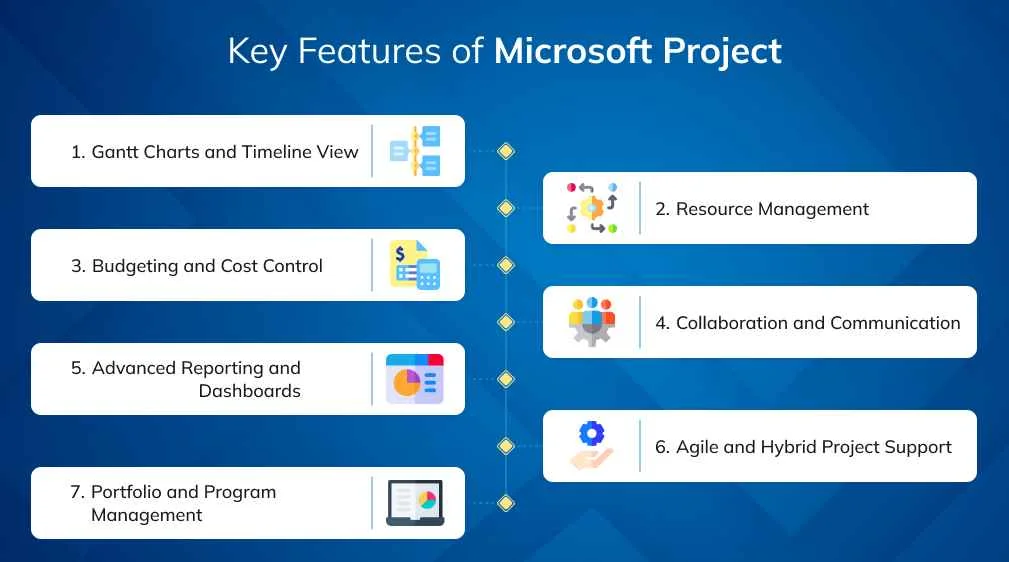
Microsoft Project packs a genuinely deep feature set. Whether you need basic task management or full-scale enterprise project management, there’s likely a tool inside this suite built for it. Here’s what you’re actually getting for your subscription.
- Gantt charts with drag-and-drop scheduling
- Task dependencies and automatic rescheduling
- Critical path highlighting
- Milestones and baselines tracking
- Resource allocation and workload management
- Capacity planning across multiple projects
- Portfolio dashboards for leadership visibility
- Budget management and cost tracking
- Time tracking for billable and non-billable hours
- Issue tracking and risk management
- Workflow automation through Power Automate
- Reporting dashboards with Power BI integration
- Custom fields for tailored project tracking
- Project templates for faster setup
- Kanban board views for Agile teams
- Sprint planning and product backlog support
- Roadmaps for cross-project visibility
- Microsoft Copilot-assisted planning
- SharePoint document integration
- Outlook and Teams notifications
Task Management
Experience update: Task management feels intuitive once you’re past the setup phase. You can assign owners, set priorities, and track project status without leaving the main dashboard. It’s not flashy, but it’s dependable, and that consistency matters more than most people expect once deadlines start piling up.
Project Planning & Scheduling
Experience update: Scheduling is where Microsoft Project genuinely earns its reputation. You get effort-based scheduling, constraints, and lag/lead adjustments that most competitors simply don’t offer. It takes practice, but experienced project managers will recognize the depth immediately and appreciate the control it hands them.
Gantt Charts & Timeline View
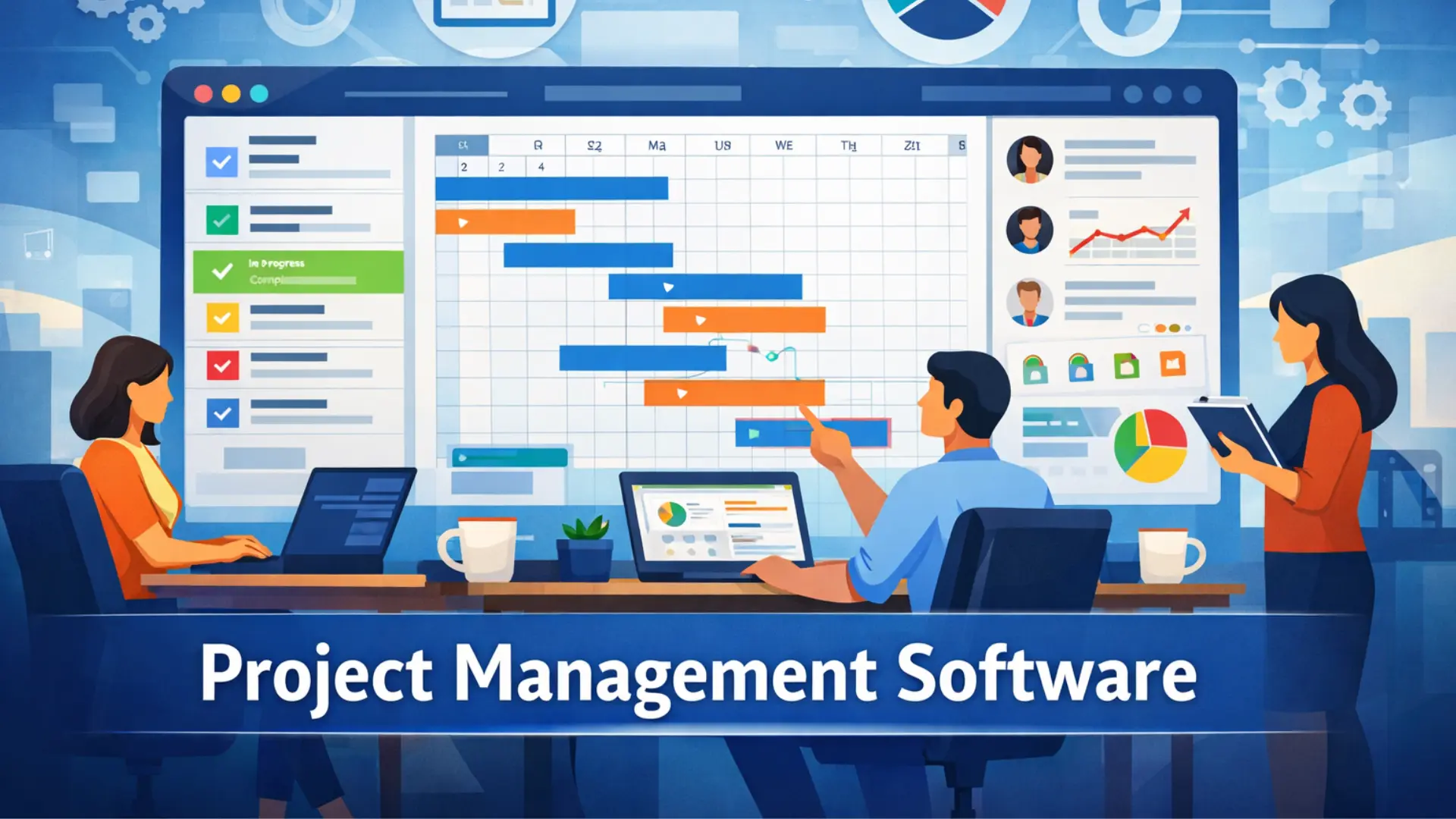
Experience update: The timeline view remains one of the strongest in the industry. Drag-and-drop editing feels responsive, and zooming between weekly and yearly views is smooth. For visually mapping out long, complex schedules, few tools currently match this level of polish and flexibility.
Dependency Management
Experience update: Setting task dependencies and constraints works cleanly, and the software automatically flags conflicts before they snowball. Finish-to-start, start-to-start, and lag settings are all supported, giving planners fine control over exactly how tasks connect.
Resource Management
Experience update: This is one of Microsoft Project’s standout areas. Resource allocation, overallocation warnings, and load leveling genuinely help prevent burnout across teams. Managers juggling dozens of people across projects will likely find this the most valuable feature in daily use.
Portfolio Management
Experience update: For organizations running multiple projects at once, portfolio dashboards offer real clarity. You can compare timelines, budgets, and resource loads side by side. It’s built more for PMOs and enterprise-level oversight than for solo freelancers managing one project.
Budget & Cost Management
Experience update: Budget management tools let you track planned versus actual costs in real time. It won’t replace dedicated accounting software, but for keeping a project’s finances visible to stakeholders, it does a genuinely solid job without extra plugins.
Time Tracking
Experience update: Time tracking is functional but not the star of the show. It covers the basics well enough for internal reporting, though teams needing detailed billing workflows may still want a dedicated time-tracking add-on alongside it.
Reporting & Dashboards
Experience update: Reporting dashboards, especially when paired with Power BI, turn raw project data into genuinely useful visuals. Executives get clean summaries, while project managers can drill into specifics. It’s one of the more polished parts of the entire platform.
Automation & Workflow
Experience update: Workflow automation through Power Automate saves real time on repetitive tasks like status updates and approvals. Setup takes some technical comfort, but once configured, it quietly handles busywork in the background without much fuss.
Microsoft 365 Integration
Experience update: Integration with Teams, Outlook, SharePoint, and Excel feels seamless if you’re already inside the Microsoft ecosystem. Notifications, file sharing, and calendar syncing just work, which honestly saves a surprising amount of daily friction.
AI Features (Microsoft Copilot)
Experience update: Microsoft Copilot brings AI project planning and AI project summaries into the mix, letting users generate schedules or status reports from natural language prompts. It’s still evolving, but early results suggest genuine time savings for repetitive planning work.
Microsoft Project Ease of Use
Experience update: Let’s be honest, this isn’t the easiest tool to pick up on day one. New users often need a few weeks before scheduling and dependencies start feeling natural. However, once the learning curve flattens, the payoff in control and precision is hard to ignore.
Teams coming from simpler tools like Trello or Notion should expect an adjustment period. Microsoft does offer solid onboarding documentation and tutorials, which helps. Still, budget real training time before rolling this out organization-wide, especially for non-technical staff.
Performance & Reliability
Experience update: Performance stays consistent even with large, resource-heavy projects loaded with hundreds of tasks. Cloud sync between desktop and web versions works reliably, with minimal lag reported during testing across standard office network conditions.
Occasional slowdowns appear when working with extremely large portfolios containing dozens of active projects simultaneously. For most mid-sized teams, though, reliability shouldn’t be a major concern day to day.
Security & Compliance
Security matters just as much as features when you’re storing sensitive project and client data. Microsoft Project inherits its security backbone from the broader Microsoft 365 infrastructure, which carries genuine enterprise-grade credentials.
- Single sign-on (SSO) support through Azure Active Directory
- Data encryption in transit and at rest
- Compliance with major frameworks including SOC 2 and GDPR
- Role-based access controls for sensitive project data
- Regular third-party security audits backed by Microsoft’s compliance team
Microsoft Project Customer Support
Experience update: Support quality varies by plan tier. Enterprise customers generally get faster response times, while smaller accounts may wait longer for live assistance. Documentation and community forums remain genuinely strong, often answering common questions faster than a support ticket would.
Microsoft also offers extensive self-service resources, including video tutorials and a searchable knowledge base. For teams comfortable troubleshooting independently, this cuts down on wait times considerably.
Microsoft Project Integrations
Microsoft Project doesn’t operate in isolation, and that’s part of its appeal. Its integration ecosystem extends well beyond basic file sharing, connecting into both Microsoft’s own tools and select third-party platforms.
| Integration | Purpose |
| Microsoft Teams | Real-time collaboration and notifications |
| SharePoint | Document storage and project sites |
| Power BI | Advanced reporting and dashboards |
| Power Automate | Workflow automation |
| Outlook | Calendar sync and email alerts |
| Azure DevOps | Developer and technical project syncing |
Microsoft Project Mobile App
Experience update: The mobile app remains the weakest link in the overall experience. It handles basic task updates and status checks fine, but complex scheduling still requires the desktop or web version. If mobile-first management matters to your team, this could be a real dealbreaker.
Microsoft Project Use Cases
Not every team needs this level of firepower, and understanding your own use case matters more than chasing features. Here’s a straightforward breakdown of who benefits most and who might want to look elsewhere.
Who Should Use Microsoft Project?
Enterprise teams, PMOs, and project managers handling complex, multi-resource projects will benefit most. If your work involves critical path scheduling, heavy resource management, or cross-departmental reporting, this tool’s depth genuinely pays off over time.
Who Should Not Use Microsoft Project?
Freelancers, small teams, or anyone managing simple to-do lists will likely find this overkill. The cost and complexity outweigh the benefit for lightweight, single-project work. A simpler tool like Trello or Planner probably fits better.
Microsoft Project Alternatives
If Microsoft Project doesn’t feel like the right fit, several strong alternatives exist depending on your team’s size and workflow style.
- ClickUp — flexible, budget-friendly, great for small-to-mid teams
- Asana — clean interface, strong for marketing and creative teams
- Monday.com — highly visual, easy onboarding
- Smartsheet — spreadsheet-style familiarity with PM power
- Wrike — solid middle ground between simplicity and depth
Microsoft Project vs Competitors
Choosing between tools often comes down to specific workflow needs rather than raw feature counts. Here’s how Microsoft Project stacks up against four popular competitors.
Microsoft Project vs Asana
Asana wins on simplicity and visual task boards, making it friendlier for creative and marketing teams. Microsoft Project pulls ahead for complex scheduling, resource management, and enterprise-scale portfolios that Asana simply wasn’t built to handle.
Microsoft Project vs ClickUp
ClickUp offers more flexibility and a gentler price tag, appealing to smaller, budget-conscious teams. However, Microsoft Project’s critical path analysis and deep resource tools remain unmatched for large, structured project environments.
Microsoft Project vs Monday.com
Monday.com is easier to learn and visually appealing right out of the box. Microsoft Project trades that simplicity for serious scheduling depth, making it the stronger choice once projects grow genuinely complex and resource-intensive.
Microsoft Project vs Smartsheet
Smartsheet feels familiar to spreadsheet users and integrates well across teams. Microsoft Project still edges ahead in native Gantt chart software precision and tighter Microsoft 365 ecosystem integration for enterprise-heavy organizations.
Microsoft Project Review Methodology
This review combined hands-on testing across desktop and web versions, direct comparison against five major competitors, and analysis of publicly listed pricing as of mid. Feature evaluations were weighted toward real-world usability rather than marketing claims, reflecting genuine day-to-day project management needs across teams of varying size.
Conclusion: Is Microsoft Project Worth It?
So, is Microsoft Project worth it? For established teams already living inside the Microsoft ecosystem, the answer leans yes. This Microsoft Project Review found solid strength in scheduling, resource management, and native Teams and SharePoint integration — the kind of depth that smaller, lighter tools just can’t match. The learning curve isn’t gentle, though, and casual users or tiny teams might feel buried under features they’ll never touch.
If you need enterprise-grade portfolio management and don’t mind investing time upfront, it earns its price tag. If you just want a simple task board, look elsewhere first — Planner or a competitor might serve you better without the overhead.
Frequently Asked Questions (FAQs)
What is Microsoft Project used for?
It’s used for planning, scheduling, and tracking projects — think Gantt charts, task dependencies, and resource allocation across teams.
Is Microsoft Project free?
No. It requires a paid plan, though Microsoft occasionally offers a free trial to test it out first.
Is Microsoft Project included with Microsoft 365?
Not by default. It’s a separate license, though some Microsoft 365 enterprise bundles can include it.
What is the difference between Microsoft Project and Microsoft Planner?
The project handles complex, detailed scheduling for professionals. Planner’s simpler, built for lightweight task management and everyday team boards.
Is Microsoft Project good for small businesses?
It can be, but it’s often overkill. Smaller teams usually get more value from lighter, cheaper alternatives.
Does Microsoft Project support Agile project management?
Yes. It offers Kanban boards, backlogs, and sprint-friendly views alongside traditional Waterfall scheduling.
Is Microsoft Project worth the price?
For complex, resource-heavy projects, yes. For basic task tracking, you’re likely paying for features you won’t use.

Nitin Alin is the founder of SaaShostly.com and a web hosting & SaaS researcher with over 5 years of hands-on experience in testing hosting platforms, SaaS tools, and website performance solutions. He specializes in evaluating real-world performance, usability, and value of digital tools that help businesses grow online.
Through SaaShostly.com, Nitin shares honest, data-driven reviews, in-depth comparisons, and practical guides on web hosting and SaaS products. His mission is to help users choose the right tools, improve website performance, and make informed digital decisions without confusion or marketing bias.