ProjectManager Review: Pros, Cons, Features & Pricing
Ever feel like every project you touch turns into a mess of scattered emails, forgotten deadlines, and sticky notes that just vanish into thin air? You’re not alone. That’s probably why you’re here, searching for a real, honest ProjectManager Review before you commit your time (and money) to yet another tool that promises the world and delivers a headache.
Good news: you’re in the right place. This ProjectManager Review breaks down exactly what the software does well, where it falls short, and whether it’s actually worth your hard-earned cash. No fluff, no sales pitch—just a straightforward look so you can decide if it’s the right fit for how you actually work.
A Quick Overview
Short on time? Here’s the answer table before you dive into the details.
| What You Want to Know | Quick Answer |
| Best for | Mid-sized teams needing Gantt charts, resource planning, and reporting in one place |
| Starting price | Around $15/user/month (Team plan, billed annually) |
| Free trial | Yes, 30 days, no credit card required |
| Ease of use | Moderate learning curve, but intuitive once set up |
| Standout feature | Real-time Gantt charts with dependency and baseline tracking |
| Weakest point | Mobile app feels limited compared to the desktop version |
| Our rating | 4.2 out of 5 |
Our Testing Experience & Expertise
We didn’t just skim the marketing pages for this one. Our team actually set up projects inside the platform, built out Gantt charts, assigned tasks across a mock team, and tracked hours through a full sprint cycle. That hands-on approach matters because pricing pages rarely tell you how a tool feels once real deadlines and real people are involved.
Our reviews are put together by writers who’ve spent years working with project management software across marketing, IT, and construction teams, and we cross-check every claim against current vendor documentation, verified user reviews on sites like G2 and Capterra, and our own testing notes. We update this guide regularly so the pricing and features you read here reflect what’s actually live on ProjectManager’s website today, not what it looked like two years ago.
ProjectManager Review Summary
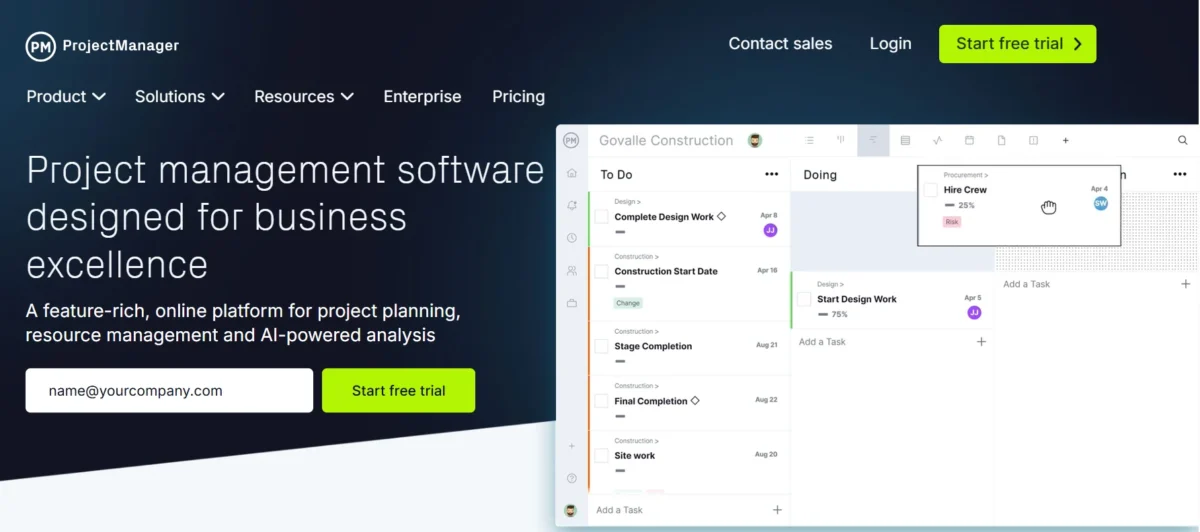
If you want the short version before we go deep, here it is. ProjectManager is a cloud-based project management software built for teams that need more structure than a basic to-do app but don’t want the complexity of enterprise software like Microsoft Project. It leans heavily on Gantt charts, resource management, and reporting tools, which makes it a strong pick for teams juggling multiple projects at once.
That said, it’s not perfect for everyone. Smaller teams or solo freelancers might find it more robust (and pricier) than they actually need. In this ProjectManager Review, we’ll walk through the features, the pricing, the pros and cons, and how it stacks up against alternatives, so you can make a confident call either way.
Our Overall Rating
We rate ProjectManager 4.2 out of 5 based on our testing, verified customer reviews, and a direct comparison against its closest competitors. It scores especially well on planning tools and reporting, and it loses a few points for pricing transparency and a mobile app that trails behind the desktop experience.
Pros at a Glance
- Powerful Gantt chart software with dependency and critical path tracking
- Strong resource management and workload balancing tools
- Built-in time tracking and timesheets
- Multiple project views: Gantt, Kanban board, list, and calendar
- Solid reporting and dashboard features
- 30-day free trial with no credit card required
- Used by well-known organizations across 100+ countries
Cons at a Glance
- Pricier than some basic task management tools
- Mobile app lacks several desktop features
- Learning curve for teams new to Gantt-style planning
- Some users report confusion during trial-to-paid billing transitions
Who Should Use ProjectManager?
ProjectManager works best for project managers overseeing multiple, moderately complex projects with several team members involved. Construction firms, IT departments, marketing agencies, and professional services teams tend to get the most value from it, since they typically need scheduling, budgeting, and resource planning all in one place. If you’re a solo user or a two-person team with simple task lists, you’ll likely find it more tool than you need.
What Is ProjectManager?
ProjectManager is a cloud-based project management platform designed to help teams plan, schedule, and track work from start to finish. Founded in 2008, the company has grown into a widely used project management software trusted by organizations in construction, IT, marketing, and manufacturing. It combines task management, Gantt charts, resource planning, and reporting into a single work management platform, which is exactly why it keeps showing up in comparisons against tools like Asana and monday.com.
At its core, ProjectManager tries to solve a common problem: too many teams manage projects across disconnected spreadsheets, chat threads, and sticky notes. By centralizing planning, execution, and reporting, it gives project managers one place to see what’s on track and what isn’t, without chasing updates across five different apps.
How ProjectManager Works
You start by creating a project and adding tasks, either manually or from a template. From there, you can switch between views—Gantt chart, Kanban board, task list, or calendar—depending on how you like to visualize work. Team members update their own tasks and log hours, and the software rolls all of that activity into dashboards so managers can spot bottlenecks early instead of finding out at the deadline.
Key Benefits of Using ProjectManager
The biggest benefit is visibility. You get a real-time view of project timelines, task dependencies, and team workload without asking for status updates every day. It also cuts down on tool-switching since scheduling, collaboration, and time tracking all live in one platform. For teams tired of juggling five different apps, that consolidation alone can save hours every week.
ProjectManager Key Features
Here’s a rundown of the core features you’ll actually use day to day. We tested most of these directly rather than just reading the spec sheet.
- Interactive Gantt charts with drag-and-drop scheduling
- Task dependencies and critical path calculation
- Baseline tracking (planned vs. actual progress)
- Kanban boards with customizable columns
- Task lists and personal to-do views
- Calendar view for deadlines and milestones
- Resource management and workload balancing
- Capacity planning across teams
- Time tracking and timesheets tied directly to tasks
- Budget and expense tracking
- Real-time dashboards for project health
- Advanced and custom reporting tools
- Workflow automation for approvals and status changes
- Project templates for faster setup
- Portfolio view for managing multiple projects at once
- Document and file sharing (cloud storage included)
- Team collaboration tools, including comments and notifications
- Custom user roles and permissions
- Mobile apps for iOS and Android
- API access for custom integrations
Task Management
Task management in ProjectManager covers the basics well: creating tasks, assigning owners, setting due dates, and tracking status. What sets it apart is how tightly tasks connect to the Gantt chart and timesheets, so a status update in one view reflects everywhere else automatically. It’s not flashy, but it’s dependable, which is honestly what most teams actually need.
Project Planning & Scheduling
Planning tools let you build out a full project timeline, set milestones, and map dependencies between tasks. If one task slips, dependent tasks shift automatically, which saves you from manually rebuilding your schedule every time something changes. This is one of the areas where ProjectManager genuinely outperforms simpler task apps.
Gantt Charts
This is ProjectManager’s signature feature, and it shows. The Gantt chart supports drag-and-drop editing, color coding, milestones, and baseline comparisons so you can see planned progress against actual progress at a glance. For anyone managing complex, multi-phase projects, this single feature can justify the subscription on its own.
Kanban Boards
If your team prefers a visual, Agile-style workflow, the Kanban board view lets you drag tasks across custom columns like “To Do,” “In Progress,” and “Done.” It syncs with the same underlying task data as the Gantt chart, so switching views doesn’t mean switching systems. Teams running Scrum or lightweight Agile process particularly benefit from this flexibility.
Resource Management
Resource management tools show you who’s overloaded and who has room for more work, which helps prevent burnout and missed deadlines. You can view team workload in a color-coded grid and reassign tasks right from that screen. It’s a genuinely useful feature that a lot of competitors either lack or bury behind higher-tier plans.
Time Tracking & Timesheets
Team members log hours directly against tasks, and those timesheets feed straight into budget tracking and reporting. Managers can approve or reject submitted hours, which adds a layer of accountability that’s missing from simpler tools. It’s not as deep as a dedicated time-tracking app, but for most teams, it’s more than enough.
Team Collaboration
Comments, file attachments, and notifications keep conversations tied to the actual task instead of scattered across email. Everyone sees updates in real time, which cuts down on the “wait, did anyone see my message?” problem that plagues distributed teams. It won’t replace Slack, but it does reduce how often you need to leave the platform.
Dashboards & Reporting
Dashboards give a live snapshot of project health, covering task status, time, cost, and workload in one screen. Reporting tools let you generate status reports, portfolio summaries, and workload reports without manually pulling numbers from spreadsheets. Some users wish for more visual templates here, but the underlying data is solid.
Budget & Cost Tracking
You can set a project budget, track actual costs as timesheets and expenses roll in, and compare planned versus actual spend. This is especially useful for client-facing teams that need to justify hours and costs at the end of a project. It’s not full-blown accounting software, but it covers what most project managers actually need.
Workflow Automation
Workflow automation handles repetitive admin work, like triggering approvals when a task status changes or notifying a manager when a deadline is at risk. It won’t automate your entire business, but it does cut down on manual busywork that eats into actual project time.
ProjectManager Pricing Plans
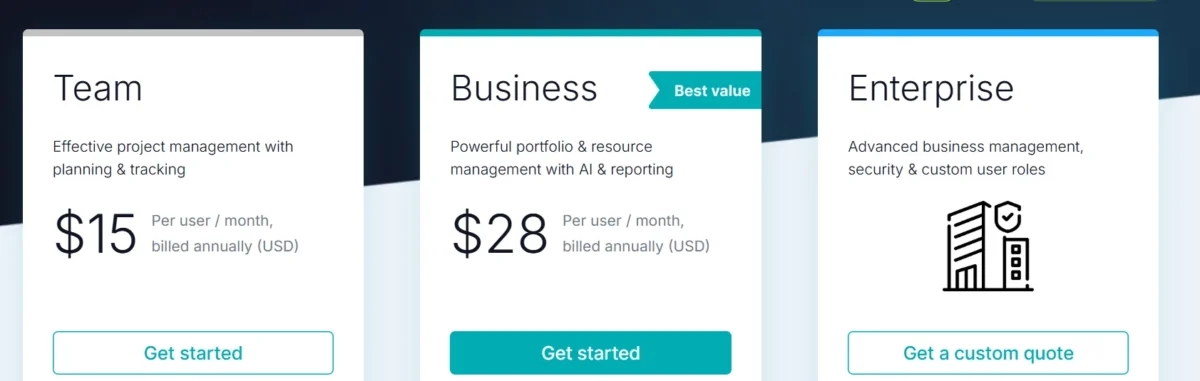
Let’s talk numbers, since pricing is usually the deciding factor. As of this update, ProjectManager offers three main tiers: Team, Business, and Enterprise.
Free Trial
ProjectManager offers a 30-day free trial, and no credit card is required to start. That’s a longer trial window than many competitors offer, which gives you real time to test the software against an actual project instead of a rushed 7-day sprint.
Pricing Plans
Here’s the current, updated pricing breakdown:
| Plan | Price (billed annually) | Best For |
| Team | Around $15/user/month | Small to mid-sized teams needing core planning tools |
| Business | Around $28/user/month | Teams needing resource management, budgeting, and advanced reporting |
| Enterprise | Custom pricing | Large organizations needing custom security, permissions, and dedicated support |
Monthly (non-annual) billing tends to run slightly higher per user, so if you’re planning to stick with the software long-term, the annual plan saves you money. Enterprise pricing is quote-based and depends on team size and feature requirements, so you’ll need to contact sales directly for an exact number.
Which Plan Offers the Best Value?
For most small to mid-sized teams, the Business plan at around $28/user/month hits the sweet spot. It unlocks resource management, budget tracking, and advanced reporting, which are the features that actually separate ProjectManager from cheaper task management tools. The Team plan works fine if you only need basic scheduling, but you’ll likely outgrow it fast once your projects get more complex.
ProjectManager User Experience
Interface & Navigation
The interface is clean, with a left-hand sidebar for switching between projects, views, and reports. Everything is where you’d expect it to be, which cuts down on the “where is that setting” frustration common with denser enterprise tools. That said, first-time users might feel a bit overwhelmed simply because there’s a lot packed into the dashboard.
Setup & Onboarding
Getting started takes maybe 30–60 minutes if you’re building out a real project from scratch, which is reasonable for a tool this capable. ProjectManager also offers live training webinars and a knowledge base, so you’re not left guessing. Teams migrating from spreadsheets will appreciate the guided setup more than teams coming from a simpler app like Trello.
Ease of Use
Overall, ease of use is solid but not instant. Basic task management feels intuitive from day one, but features like resource management and custom workflows take a bit of practice to master. Based on our testing and cross-referenced user reviews, most teams report feeling comfortable within the first one to two weeks of regular use.
Integrations & Compatibility
Third-Party Integrations
ProjectManager integrates with popular tools including Slack, Microsoft Teams, Google Workspace, Microsoft Office (Excel, Outlook, OneDrive), Salesforce, QuickBooks, Xero, and Dropbox. That covers most of the communication, file storage, and finance tools teams already rely on, so you’re not forced to abandon your existing workflow.
Mobile Apps
Free iOS and Android apps let field teams and remote workers update tasks, log hours, and upload photos without being at a desk. It’s genuinely useful for construction and field service teams, though it’s worth noting the mobile experience isn’t quite as full-featured as the desktop version.
API & Custom Integrations
For teams with specific internal systems, ProjectManager offers API access so you can build custom integrations or connect to tools not covered by the native integration list. This is mostly relevant for larger organizations or IT teams with development resources on hand.
ProjectManager Pros & Cons
Pros:
- Excellent Gantt chart and scheduling tools
- Strong resource and workload management
- Time tracking built directly into tasks
- Multiple project views in one platform
- Solid reporting and dashboards
- Long 30-day free trial, no card required
Cons:
- Higher price point than basic task tools
- Mobile app trails behind desktop functionality
- Takes time to learn the full feature set
- Some billing and cancellation complaints from users
Customer Reviews & Ratings
What Users Love
Across verified reviews on sites like G2 and Capterra, users consistently praise the flexible project views, the intuitive Gantt charts, and how well the platform handles real-time collaboration across distributed teams. Many also highlight that customer support is responsive when questions come up during setup.
Common Complaints
The most repeated complaints center on pricing clarity, particularly around trial-to-paid transitions and how billing scales with added users. A smaller number of reviewers also mention that reporting templates could use more visual variety, and that the mobile app doesn’t fully match desktop capabilities.
Overall Customer Satisfaction
Aggregated ratings across major review platforms generally land ProjectManager in the 4.0–4.1 out of 5 range, which is solid for a mid-market project management tool. Satisfaction tends to be highest among teams that actually use the resource management and reporting features, rather than those using it purely as a task list.
ProjectManager vs Competitors
ProjectManager vs Asana
Asana is generally easier to pick up for simple task management, but it lacks the depth of ProjectManager’s Gantt charts and resource planning tools. If your team needs true project scheduling rather than just task tracking, ProjectManager pulls ahead here.
ProjectManager vs monday.com
monday.com wins on visual customization and ease of use for non-technical teams. ProjectManager, on the other hand, offers stronger built-in time tracking and budget tracking, making it a better fit for teams that need financial oversight alongside scheduling.
ProjectManager vs Smartsheet
Smartsheet appeals to spreadsheet-first teams and offers more flexibility in data structure. ProjectManager feels more purpose-built for visual project planning right out of the box, with less setup required to get a usable Gantt chart running.
ProjectManager vs Wrike
Wrike offers similarly strong reporting and automation, and pricing between the two is fairly close. The deciding factor usually comes down to interface preference, since both platforms cover comparable ground on resource management and workflow automation.
ProjectManager vs Microsoft Project
Microsoft Project is more powerful for extremely complex, enterprise-scale scheduling, but it comes with a steeper learning curve and less collaborative, cloud-first design. ProjectManager is the more approachable choice for teams that want strong scheduling tools without the enterprise-level complexity.
Best ProjectManager Alternatives
Asana
Best for teams that prioritize simple task management and clean design over deep scheduling tools.
monday.com
Best for visually-driven teams that want heavy customization across boards and workflows.
ClickUp
Best for teams wanting an all-in-one workspace that blends docs, chat, and tasks with project tracking.
Smartsheet
Best for teams that think in spreadsheets and need flexible, grid-based project data.
Paymo
Best for smaller agencies that want time tracking and invoicing bundled with basic project management.
Security & Customer Support
Security Features
ProjectManager supports two-factor authentication (2FA), single sign-on (SSO) via Google and Microsoft, and custom user permissions at both the account and project level. The company also states it follows regular security audits and industry compliance best practices, which matters if you’re handling sensitive client or financial data.
Customer Support Options
Support includes live chat, a searchable knowledge base, and weekly live training webinars for paid customers. Response times in user reviews are generally described as fast, though depth of support can vary depending on your plan tier.
Is ProjectManager Worth It?
Best For
ProjectManager is worth it for mid-sized teams managing multiple, moderately complex projects that need real scheduling, resource planning, and reporting—not just a task list. Construction, IT, marketing, and professional services teams tend to see the strongest return.
Not Ideal For
If you’re a solo user, a very small team, or someone who just needs a simple to-do list, ProjectManager is likely more tool (and more cost) than you actually need. Simpler apps like Trello or Asana’s free tier would serve that use case better.
Conclusion
At the end of the day, choosing project management software comes down to matching the tool to how your team actually works. ProjectManager stands out for its Gantt charts, resource management, and reporting depth, making it a strong pick for teams that have outgrown basic task lists but don’t need the complexity of enterprise-grade software.
If your team manages multiple projects with real scheduling and budget demands, the 30-day free trial is worth your time to test firsthand. And if you’re a smaller team just looking for simple task tracking, it’s worth weighing ProjectManager against lighter alternatives before committing to a paid plan.
Frequently Asked Questions
Is ProjectManager free?
No, ProjectManager doesn’t offer a permanent free plan, but it does include a 30-day free trial with no credit card required.
How much does ProjectManager cost?
Pricing starts around $15/user/month for the Team plan and around $28/user/month for the Business plan, both billed annually. Enterprise pricing is custom.
Is ProjectManager better than Microsoft Project?
It depends on your needs. ProjectManager is more approachable and cloud-collaborative, while Microsoft Project offers deeper scheduling power for large, complex enterprise projects.
Does ProjectManager offer time tracking?
Yes, timesheets are built directly into tasks, and hours logged feed automatically into budget tracking and reporting.
Is ProjectManager suitable for Agile teams?
Yes, the Kanban board view supports Agile and Scrum-style workflows alongside the traditional Gantt chart view.
Does ProjectManager have a mobile app?
Yes, free iOS and Android apps are available, though some features are more limited than on desktop.

Nitin Alin is the founder of SaaShostly.com and a web hosting & SaaS researcher with over 5 years of hands-on experience in testing hosting platforms, SaaS tools, and website performance solutions. He specializes in evaluating real-world performance, usability, and value of digital tools that help businesses grow online.
Through SaaShostly.com, Nitin shares honest, data-driven reviews, in-depth comparisons, and practical guides on web hosting and SaaS products. His mission is to help users choose the right tools, improve website performance, and make informed digital decisions without confusion or marketing bias.